


Keeping the operating system (OS) of an Android device up to date is one of the most important practices to ensure its security and stability. OS updates not only introduce new features and performance improvements, but also include critical security patches to protect devices from emerging vulnerabilities and cyber threats. Ignoring these updates can leave devices exposed to significant risks, compromising both user data and system integrity.
For companies managing a fleet of devices, whether in a kiosk environment, point of sale, or employee use, manually updating the OS is unfeasible. This document will guide you through the necessary steps to control and automate the deployment of these updates.
With Applivery, you can ensure that your devices always run on the most recent and secure OS versions, maintaining business continuity and strong protection without the burden of individual management.
Configure a system update policy #
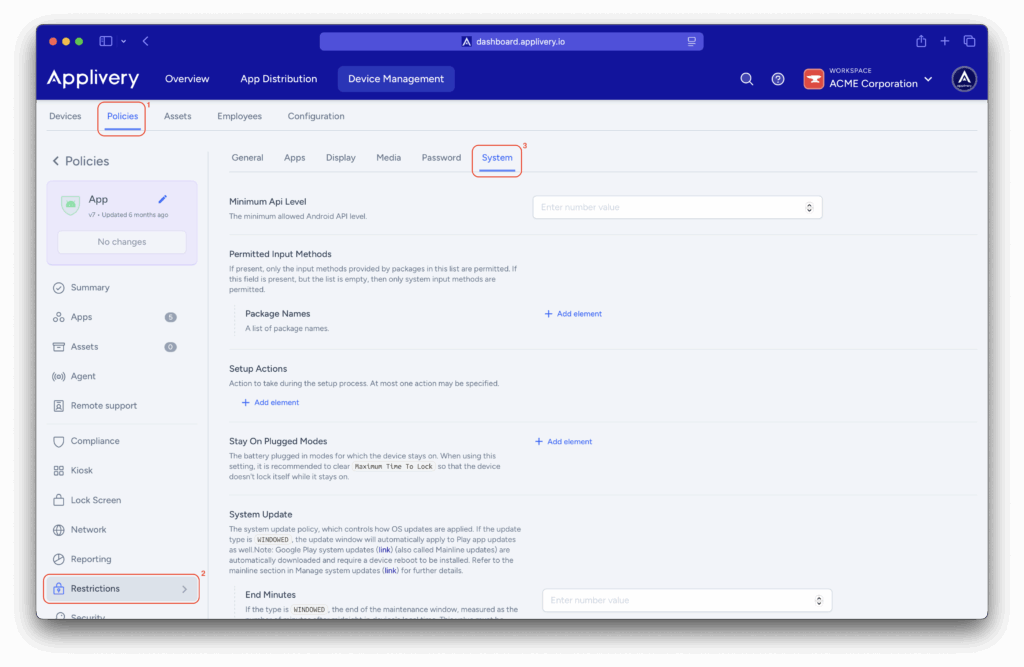
Once in the Applivery Dashboard, go to any of your Policies (1) (under Device Management > Policies). From the left side menu go to Restrictions (2) and locate the System (3) section.
Update types #
This is the main configuration that defines how OS updates are handled:
- UNSPECIFIED: Follows the device’s default update behavior, which usually requires the user to accept and trigger the update manually.
- AUTOMATIC: Updates are installed automatically as soon as a new version becomes available. This option is ideal for environments that need to stay up to date with the latest features and security patches immediately.
- WINDOWED: Updates are installed automatically within a daily maintenance window that you define. This option is highly recommended for kiosk devices, since updates will occur outside of business hours. It also allows Play Store apps to update within this same window. If an app is configured with the HIGH PRIORITY update mode, it will ignore the window and update immediately.
- POSTPONE: Updates are automatically postponed for up to 30 days. This policy does not affect critical security updates, which will always be deployed immediately.
End and Start Minutes #
These settings only apply if the update type is set to WINDOWED. They allow you to define the daily maintenance window in minutes, starting from midnight.
- Start Minutes: Defines the start time of the maintenance window (e.g., 120 for 2:00 AM).
- End Minutes: Defines the end time of the maintenance window (e.g., 300 for 5:00 AM).
Freeze Periods #
Freeze Periods are a key feature for device admins who require strict control over operating system updates. They allow you to postpone Android OS OTA (Over-the-Air) updates for a recurring period each year.
This is extremely useful to prevent devices from updating during critical business times, such as peak sales seasons, major events, or periods of high operational demand.
To add them to the policy, simply click on + Add element to expand all the configuration fields.
How does it work? #
- Period Definition: You can define a start date and an end date for the freeze period.
- Behavior: When a device is within a freeze period, all system updates (including security patches) are blocked and not installed. The device will return to its normal update policy once the freeze period ends.
-
Configuration: To set it up, you must specify the start and end day, month, and optionally the year. A freeze period must last a minimum of 60 days.
Within the Freeze Periods section, each freeze period you add has two main subsections: Start Date and End Date. Each of these subsections contains the following configuration fields, allowing you to precisely define the time frame during which updates will be postponed:
- Day: Enter a number from 1 to 31 representing the day of the month when the freeze period starts or ends.
- Month: Enter a number from 1 to 12 representing the month when the freeze period starts or ends.
-
Year: Enter a number from 1 to 9999 representing the year.
Practical example #
If a store is preparing for the holiday season and doesn’t want OS updates to interrupt the operation of its point-of-sale devices, it can set a freeze period from November 1st to December 31st. During this time, no device will update automatically.
Using Freeze Periods gives you the assurance that your devices will maintain a stable OS version during the most critical times, ensuring business continuity without unexpected interruptions.
Managing operating system updates is a critical component of Android device administration, as it directly impacts the security, stability, and performance of an entire fleet. As we have explored, a platform like Applivery provides the necessary tools to turn a complex and potentially risky process into a controlled and automated workflow.
By configuring update modes (AUTOMATIC, WINDOWED, POSTPONE) and using Freeze Periods, admins can design a strategy that perfectly fits their organization’s operational needs. This proactive approach not only protects devices from vulnerabilities but also minimizes unexpected interruptions, ensuring smooth business operations even during the most critical periods.
In short, strategic OS update management is key to maintaining a robust and reliable Android ecosystem in the long term.