

The Applivery Windows MDM Agent is an optional software component that can be installed on managed Windows devices to extend Applivery’s management capabilities beyond the limitations of the native Windows MDM protocol. By complementing standard MDM APIs, the agent unlocks advanced functionalities that are not otherwise available through Microsoft’s built-in management framework.
Before deploying the Windows Agent, it is important to understand and comply with Microsoft’s guidelines and requirements to ensure proper operation, system stability, and security alignment within enterprise environments.
By using the Windows Agent, organizations gain access to deeper customization options and more comprehensive control over their Windows device fleet. This enables IT teams to implement advanced workflows, improve automation, and manage devices more effectively, while still maintaining compliance with corporate policies.
The agent provides added value for both end users and administrators: users benefit from self-service capabilities that reduce dependency on IT, while administrators gain enhanced visibility, control, and operational efficiency.
Self-Service #
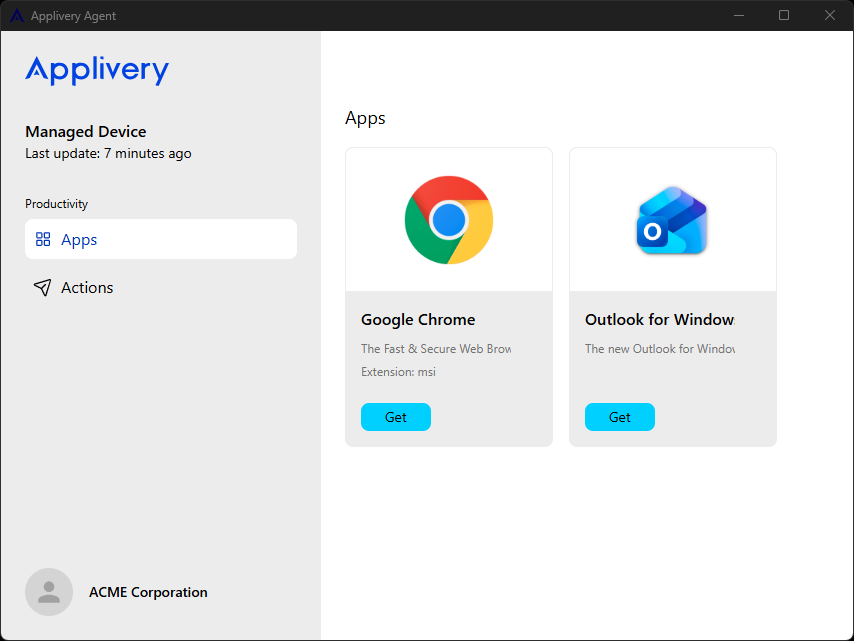
One of the core features of the Windows Agent is Self-Service, designed to reduce IT workload by allowing users to resolve common requests independently. Through seamless integration with managed devices, Applivery deploys a dedicated self-service environment where users can access approved resources and actions without administrator intervention.
This approach improves productivity, shortens response times, and enables IT teams to focus on higher-value tasks.
App Catalog #
Administrators can define a catalog of approved applications that end users are allowed to install on demand. This ensures software consistency while giving users flexibility.
Detailed instructions for managing applications are available in the following documentation.
Actions #
Self-Service also allows users to execute predefined scripts to assist with common tasks or resolve device-related issues. Script execution results are automatically reported back to the Applivery portal, giving administrators visibility into actions performed on devices.
Scripts can be selectively assigned to Self-Service to ensure users only have access to safe and approved operations.
You can find out how to assign a script to Self Service here.
Enabling Windows Agent App #
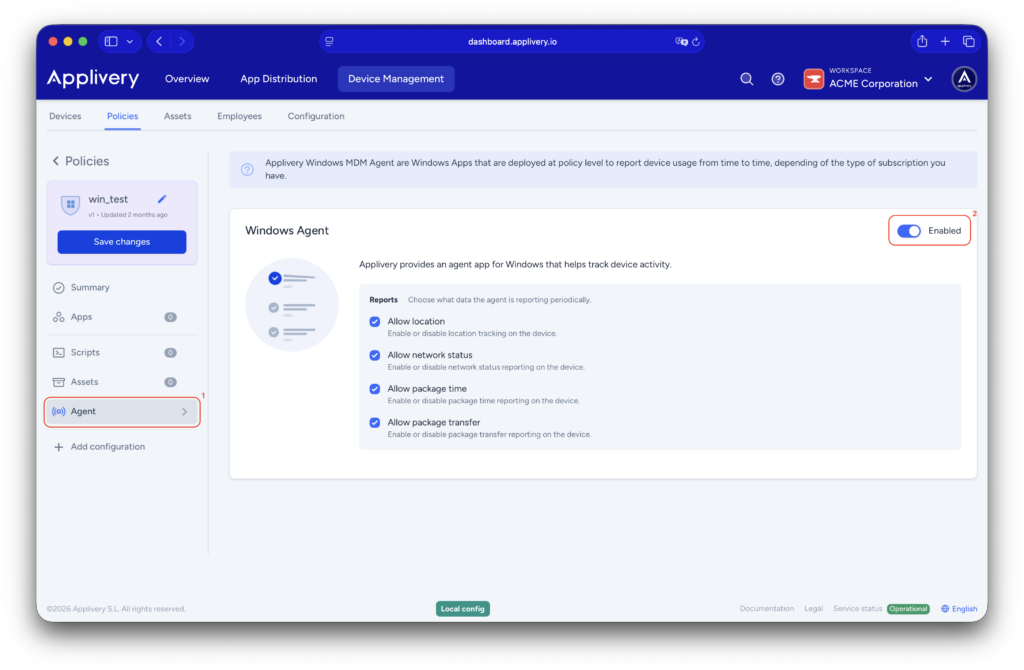
Navigate to the Device Management section within the Applivery dashboard. From there, select the desired policy under Policies. In the left-hand menu, click on Agent (1).
Enable (2) the Windows Agent and activate the reporting options you want to use with the agent. Once enabled and deployed, the agent will begin extending device management capabilities according to the selected policy configuration.