

Check the availability in our pricing page.
In this tutorial, we will learn how to integrate Applivery with your Okta Users Directory through SAML. The Okta Single Sign-On integration provides a secure authentication solution that leverages managed Okta account credentials.
Please follow carefully the next steps.
Step 1 - Get the Service Provider information from Applivery #
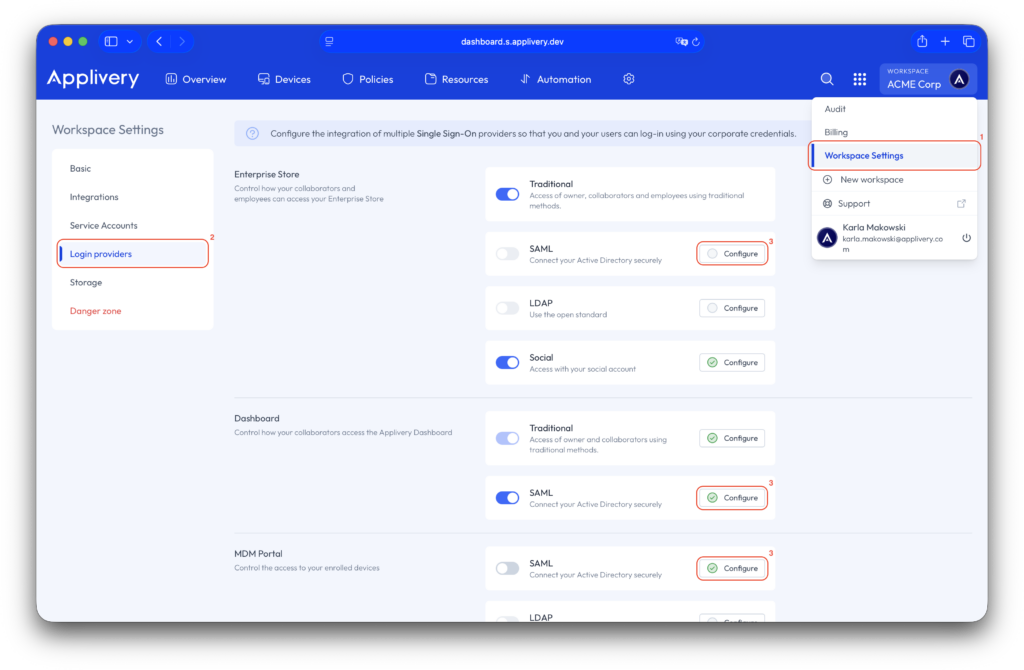
Once in the Applivery Dashboard, navigate to your Workspace Settings (1) and go to the Login providers (2) section. Now click the Configure (3) button beside the SAML row depending on whether you want to configure it for the Dashboard, Enterprise Store or MDM Portal.
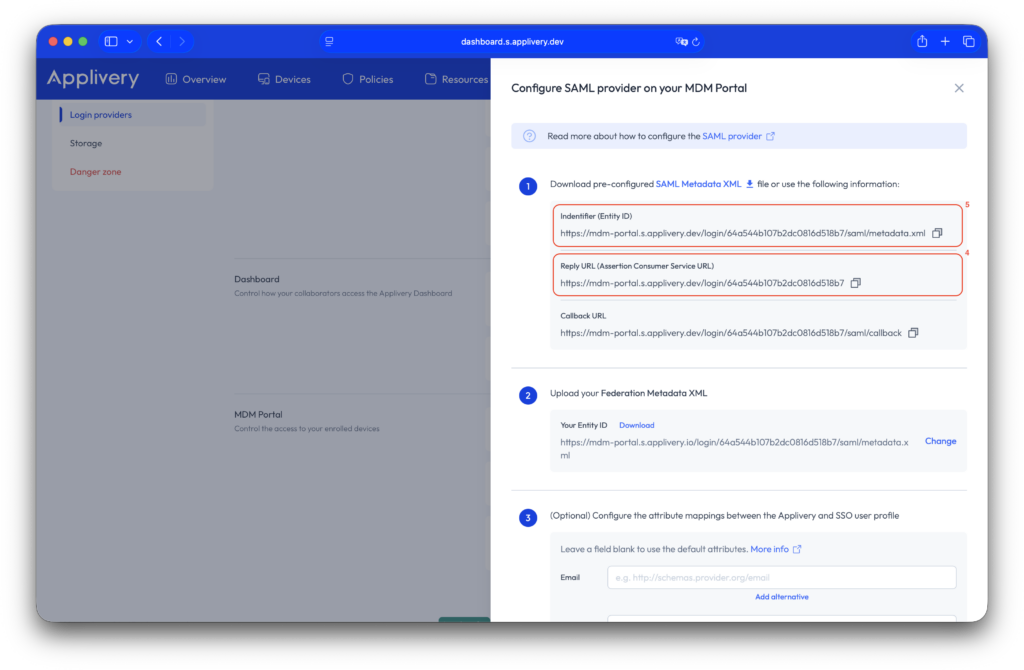
You will now see your SAML configuration, including a pre-configured SAML metadata XML file that you can import into your Identity Provider.
Since Okta does not allow uploading the Applivery pre-configured metadata XML, you can use the fields below to map the required params:
- Single sign-on URL (4):
- Dashboard:
https://dashboard.applivery.com/welcome/sso/{organization_slug}. - Enterprise Store:
{organization_slug}.applivery.iooryou.yourcompany.com. - MDM Portal:
https://mdm-portal.applivery.io/login/{organization_id}.
- Dashboard:
- Audience URI (SP Entity ID) (5):
https://dashboard.applivery.com/sso/{organization_slug}/metadata.xml
Step 2 - Configure your Okta Identity Provider #
Now that you have your Service Provider information, it’s time to configure it in your IdP. We will use the Okta platform, which allows you to configure any Service Provider supporting SAML 2.0
Step 2.1 - Login into Okta Admin Portal and create an App #
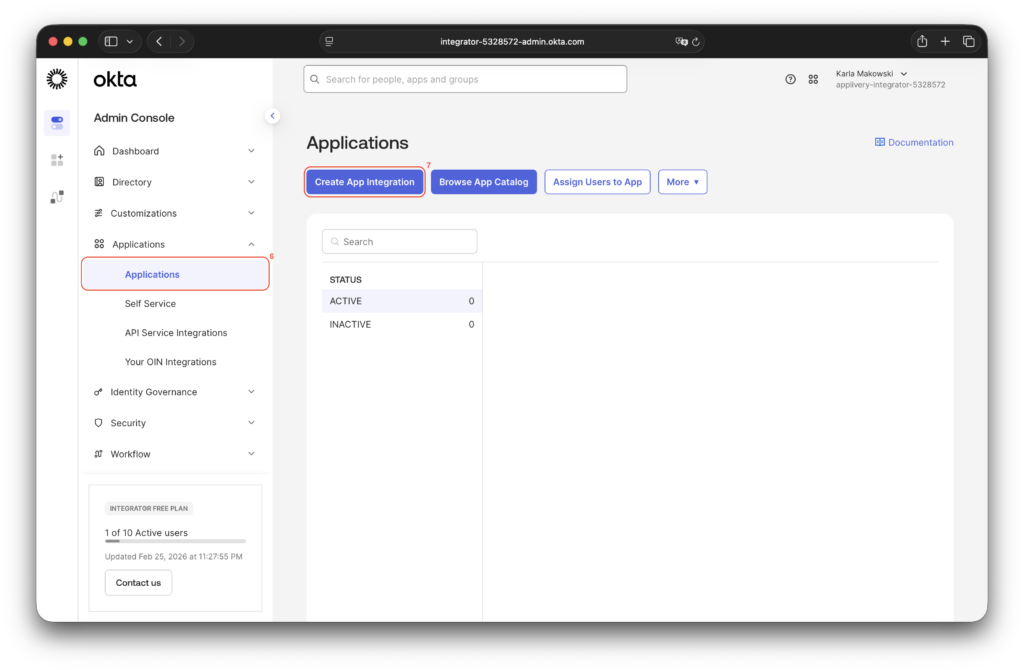
Login into your Okta Portal and go to Applications (6). Then click the Create App Integration (7) button at the top of the page, and choose SAML 2.0.
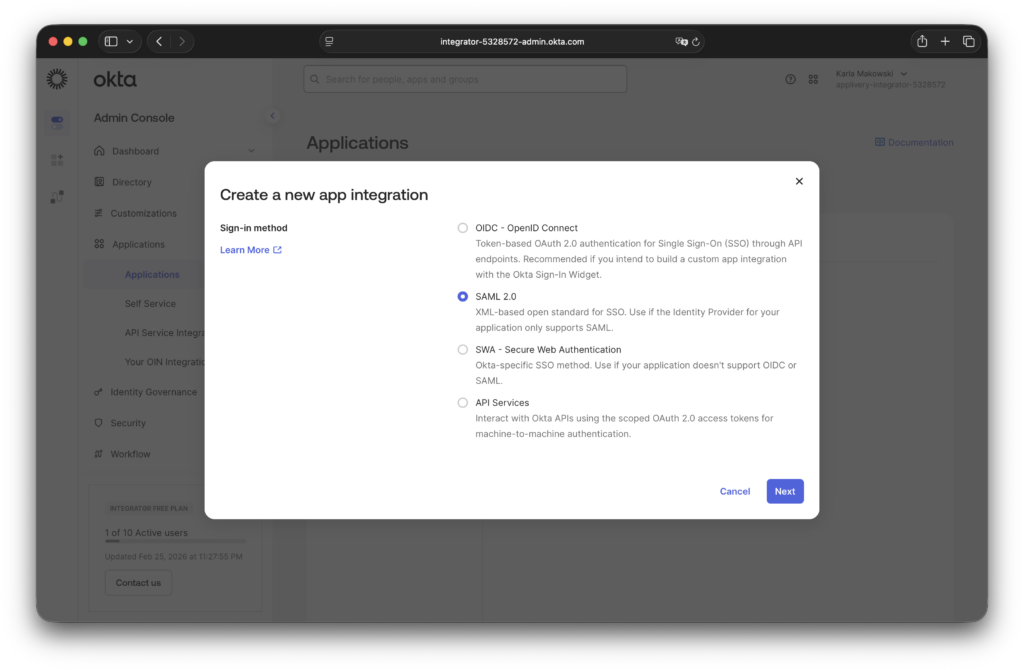
Step 2.2 - Configure SAML #
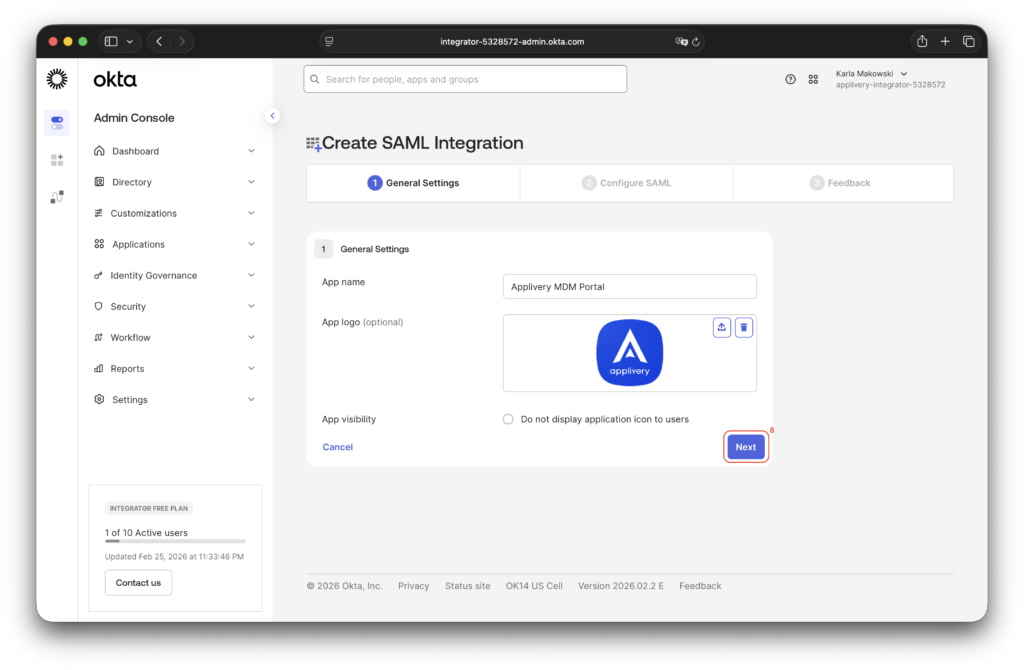
Give a name to your new App and optionally upload the Applivery logo to easily identify it. Then click Next (8).
In the next screen fill out the Single sign-on URL and Audience URI (SP Entity ID) (9) with the values mentioned above. Additionally, select Name ID format = EmailAddress and Application username = Email (10).
Leave the rest of the fields with the default values.
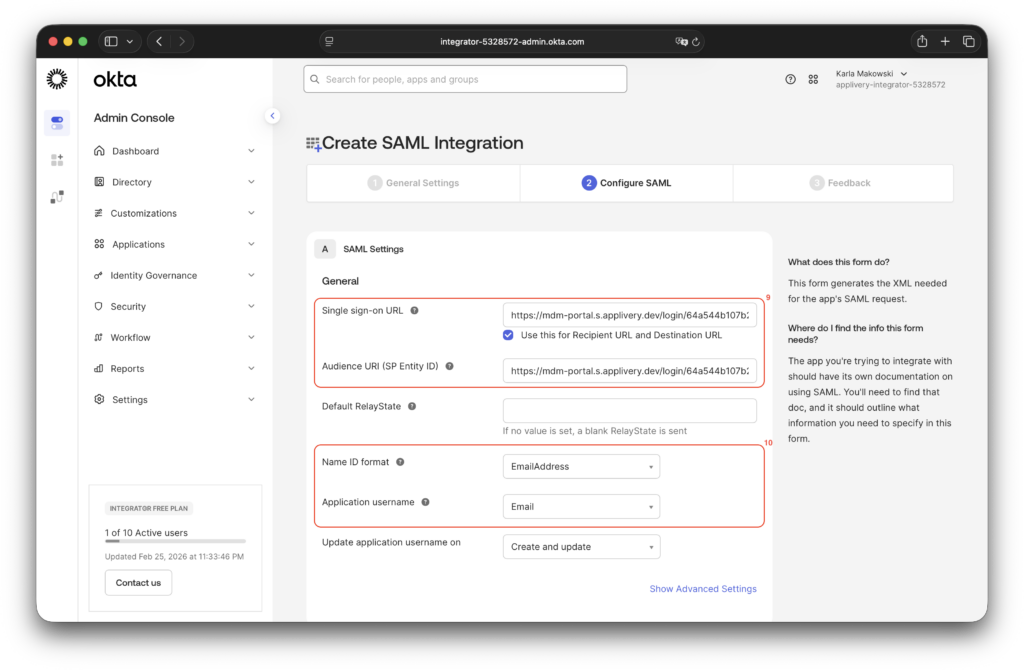
When you’re done, click Next.
Next, scroll down to the Attribute Statements (11) section. Open the Show legacy configuration (12) dropdown, click Edit in the upper-right corner, and apply the following configuration to enable sending Okta groups to Applivery:
- Name:
http://schemas.microsoft.com/ws/2008/06/identity/claims/groups - Name format: URI Reference
- Filter: User your preferred configuration based on your needs. For instance, you can choose Start with and type something that will be used as a prefix so that all groups matching that prefix in your Okta Directory will be sent to Applivery or choose Matches regex and type
.*to always send all groups or define any other regular expression.
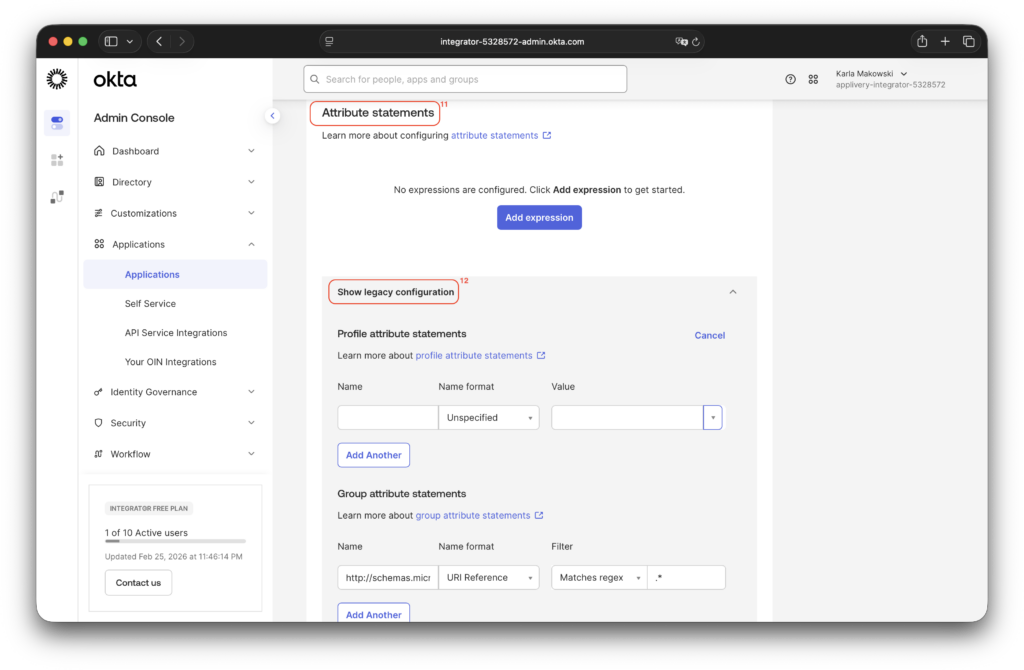
Once configured, click Save.
Step 2.3 - Download Federation Metadata XML file from Okta #
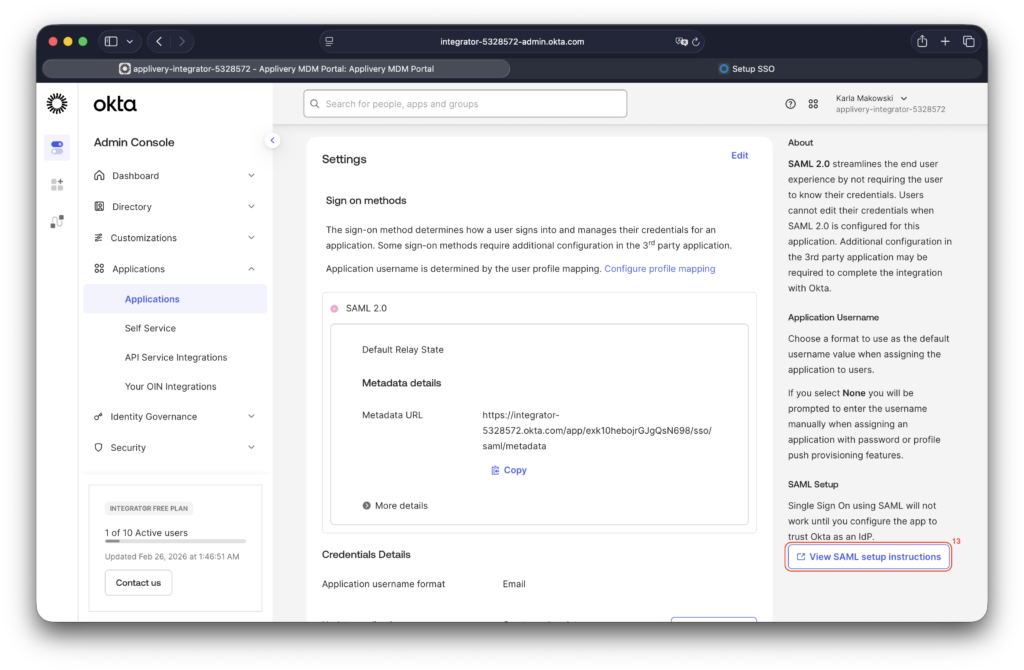
Next, scroll back up to access the Metadata XML. Locate the View SAML Setup Instructions (13) button and click it. At the bottom of the page, you will find the IdP metadata, which you should copy into a text editor and save as an XML file.
Go back to the Applivery Dashboard > Workspace Settings > SAML Provider screen (the same screen from Step 1 of this tutorial) and upload the Federation Metadata XML file you just created under Step 2. Then click Save changes.
Once saved, use the toggle switch to enable your new SAML integration for your organization.
Step 3 - Test it out! #
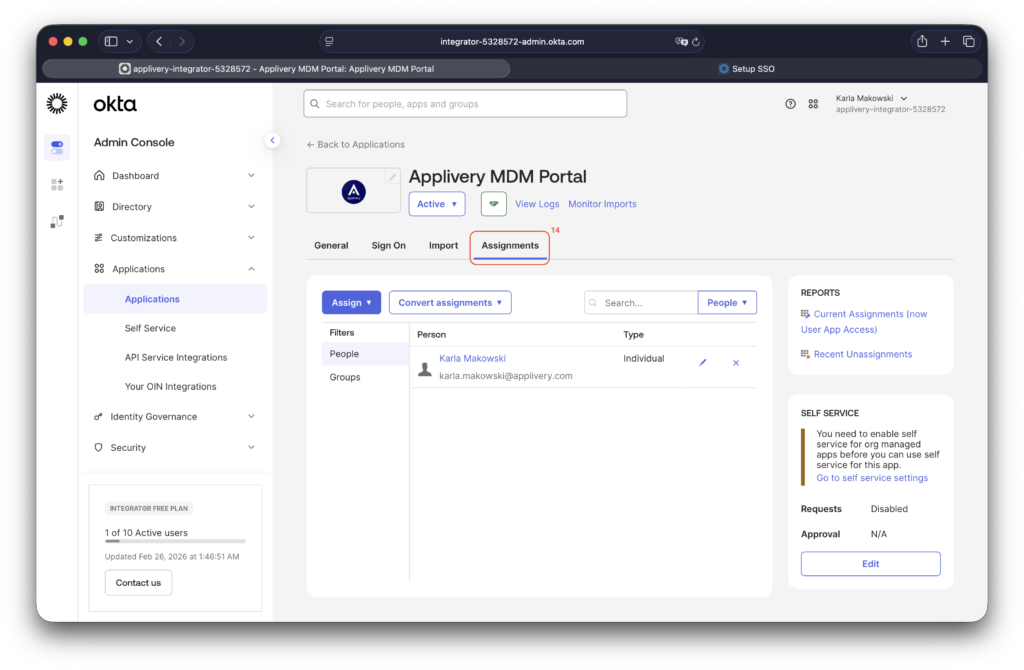
After completing the setup, in Okta, make sure to go to the Assignments (14) section and assign the users and groups you want to grant access to your application.