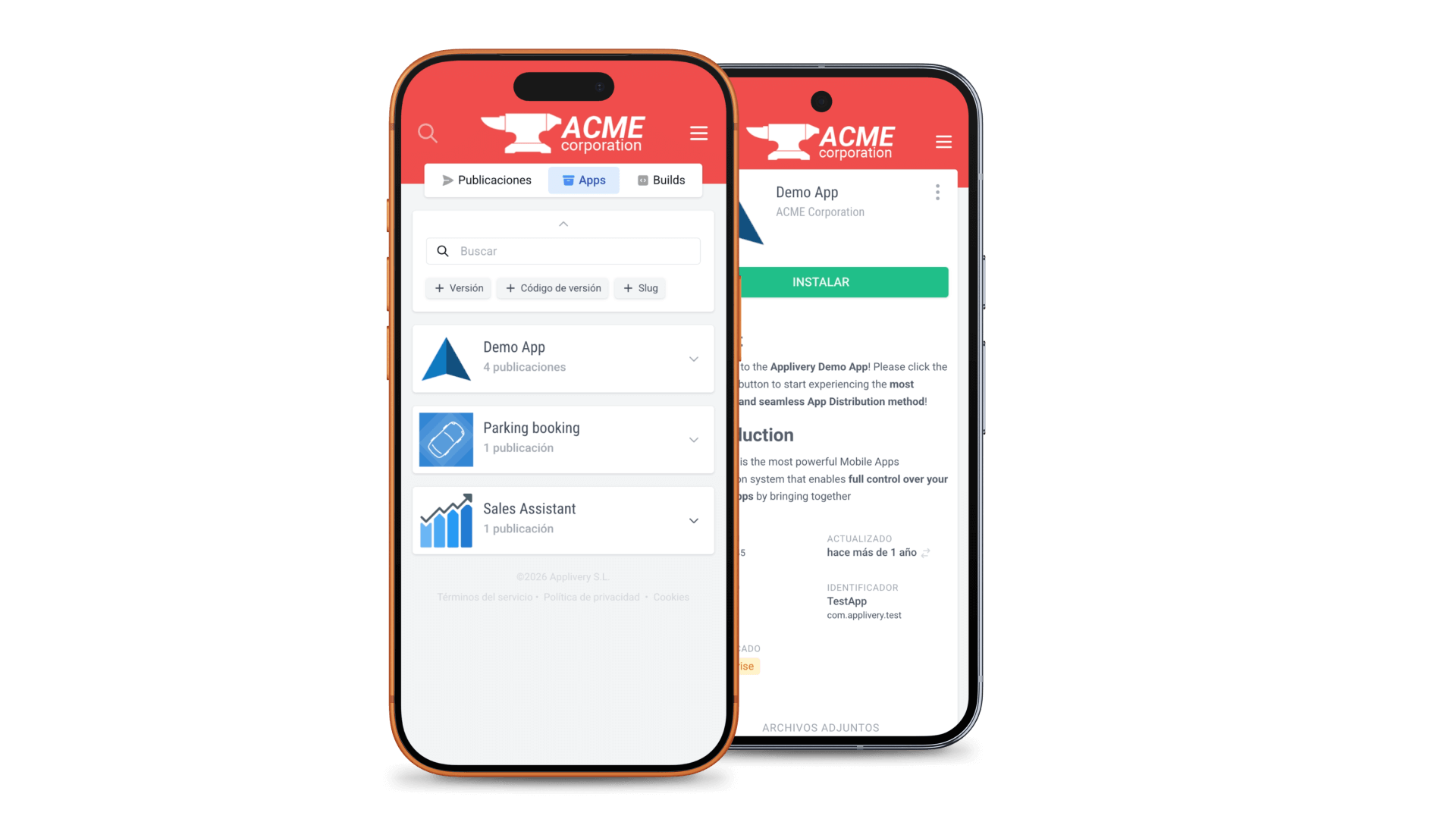


App Distribution is of the core capabilities of Applivery. Whether you need to distribute internal enterprise apps, manage beta testing programs, or publish production-ready builds to employees, Applivery provides a centralized and secure platform to streamline the entire process.
Accessing the Applivery Dashboard #
The Applivery Dashboard is the administrative console where you and your team manage everything related to application distribution. It is accessible at https://dashboard.applivery.io.
Users with access to the dashboard are called Collaborators. Collaborators can have different roles and permissions, such as administrative or development access, depending on their responsibilities within the project.
End users, referred to as Store employees, do not access the dashboard. Instead, they access your organization’s Enterprise Store, where they can download the applications that have been made available to them.
Getting started with Applivery is straightforward. Once your workspace is created, you can begin organizing your applications and publishing them to your users.
The Dashboard #
The Applivery Dashboard interface is organized into several key sections that allow you to manage your applications and distribution workflows efficiently.
Overview #
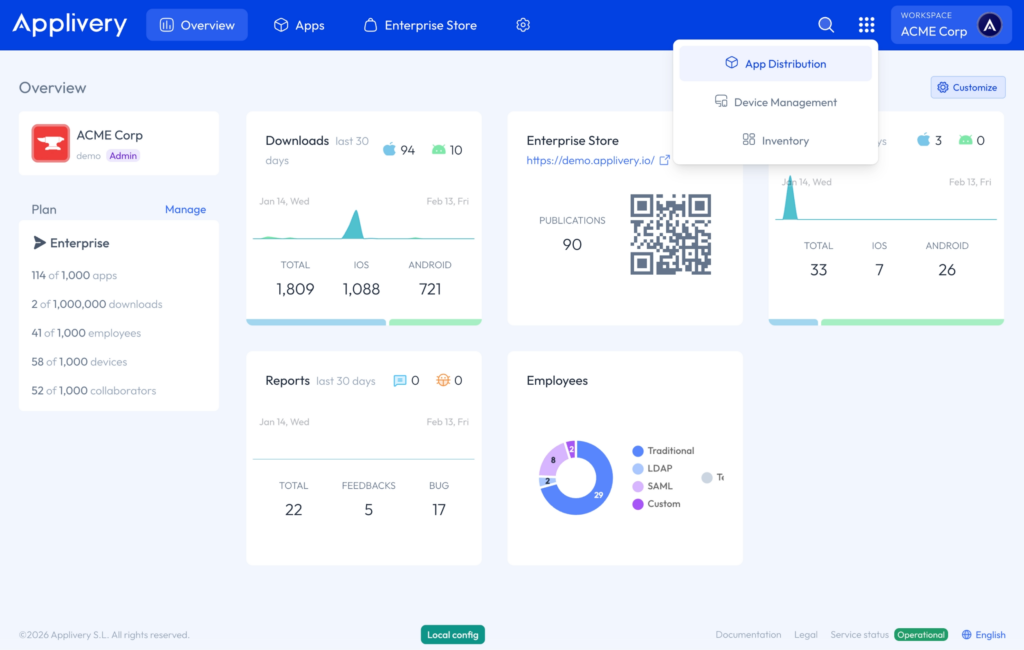
The Overview section is the main landing page of your workspace.
Here you will find:
- Download statistics and build activity.
- Reports and usage insights.
- Employee metrics.
- General information about your subscription plan.
This section provides a high-level view of your distribution activity and overall workspace performance.
Apps #
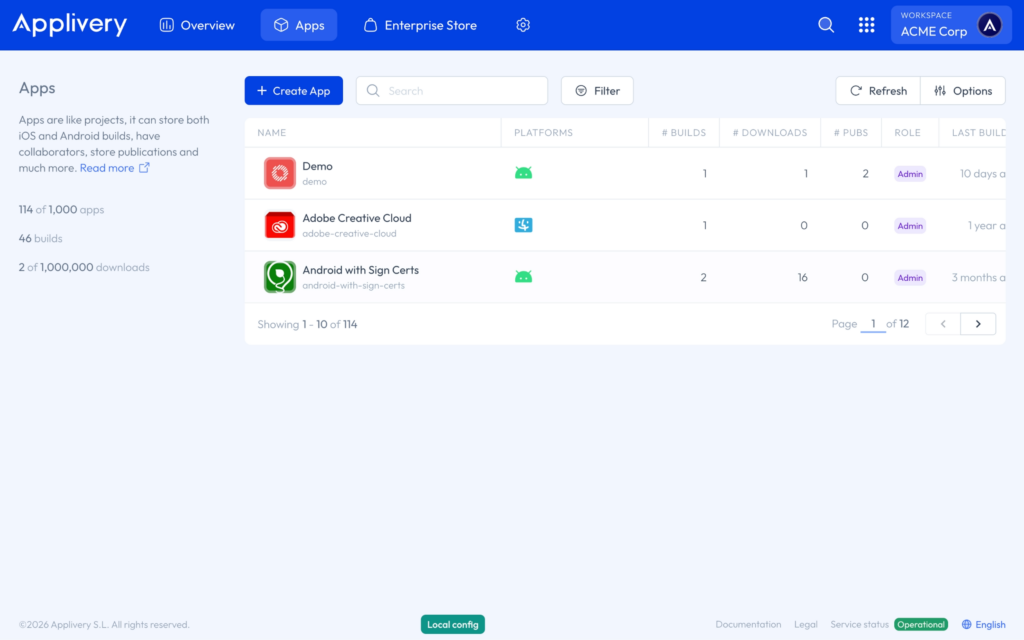
An App in Applivery represents your project container. Each app can store builds for multiple platforms, including:
- Apple (
.ipa,.pkg,.dmg). - Android (
.apk,.aab). - Windows (
.msi,.exe,.msix,.appx,.msixbundle,.appxbundle). - Custom build platforms.
From this section, you can:
- Create new applications.
- Upload and manage builds.
- Update existing versions.
- Configure distribution settings.
You have full control over your apps and can decide whether to create a new app for each project or reuse an existing one depending on your release strategy.
The Apps section acts as the technical repository of your binaries and versions.
Enterprise Store #
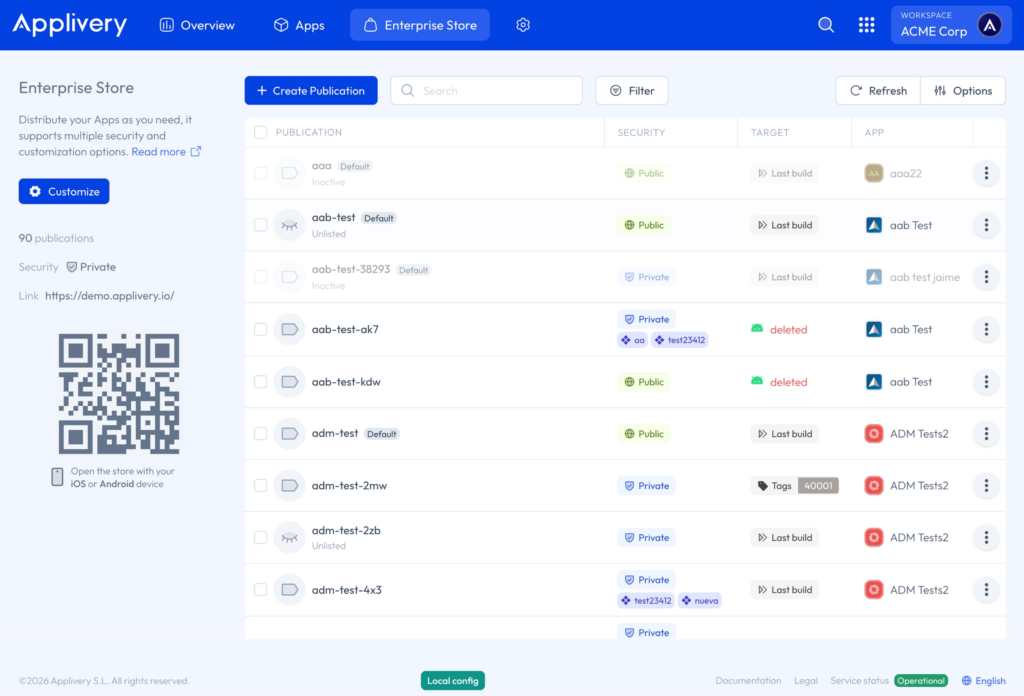
From this section, you can:
- Create new publications.
- Edit existing ones.
- Control which apps are visible to which users.
- Manage version rollout strategies.
Directory and Configuration #
The Directory and Configuration section centralizes the management of users, access control, and workspace-level settings within Applivery.
From this section, administrators can manage both internal collaborators and end users, define audience segmentation, and configure Enterprise Store customization options.
- Collaborators: Users who have access to the Applivery Dashboard. They can be assigned different roles and permission levels depending on their responsibilities, such as administrative access, app management, or development tasks. Proper role assignment ensures secure operational workflows and prevents unauthorized changes within the workspace.
- Store Employees: The end users who access the Enterprise Store to download applications. They do not have access to the dashboard but can authenticate into the store based on the configured access method. Administrators can manage employee accounts individually or through directory integrations, depending on the organization’s setup.
- User Audiences: This feature allows administrators to group employees based on attributes. These audiences can then be used to control app visibility within the Enterprise Store, restrict access to specific builds, and define segmented distribution strategies. This enables granular distribution control and supports complex organizational structures.
- Store customization: The Enterprise Store can be fully customized to align with corporate branding. From this section, administrators can configure logo and brand assets, color themes, store naming and security. This ensures a consistent brand experience while maintaining enterprise-grade security.
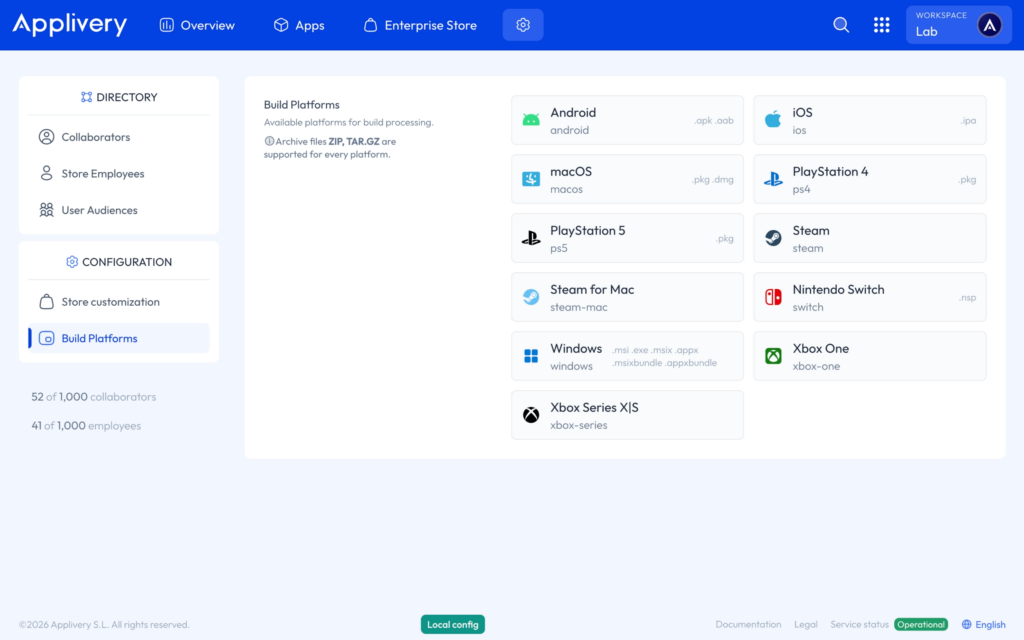
- Build Platforms: This section shows which platforms are currently enabled at the workspace level (Apple, Android, Windows, or custom platforms).
The Enterprise App Store #
The Enterprise App Store represents your organization’s private app store.
This is where your published applications become available to end users (Store employees). It is a web-based app store that:
- Supports multiple authentication and security configurations.
- Is fully customizable to match your corporate branding.
- Allows granular control over app visibility.