


A computer script is essentially a sequence of instructions (commands) that the computer executes, making it an excellent tool for automating repetitive tasks. Scripts are highly scalable and versatile.
Because scripts can be deployed to user devices through device management solutions (such as Applivery), they are invaluable for IT teams. They enable you to perform complex tasks quickly, accurately, and effortlessly:
- Quickly: By using scripts alongside mobile device management, you can automate tedious processes. For example, you can access a computer program on 100 company devices with zero clicks instead of doing it manually 100 times.
- Accurately: A well-written script will consistently execute the same defined action every time, reducing the risk of errors that might occur if a human administrator were to perform the task manually, which can lead to inconsistencies and confusion.
- Easily: You can achieve complex and detailed tasks by breaking them down into smaller, manageable scripts, making the overall process much simpler.
Step 1 - Create your first script #
Go to the Applivery Dashboard and navigate to Resources, then navigate to the Scripts (1) section and click on + Create Script (2).
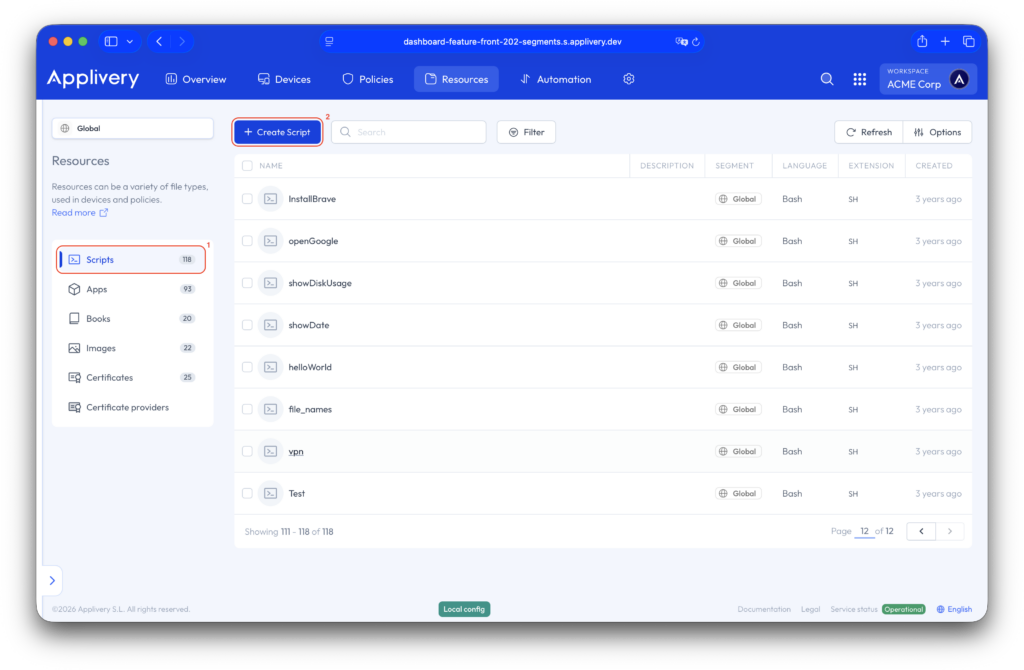
A code editor will appear on the screen.
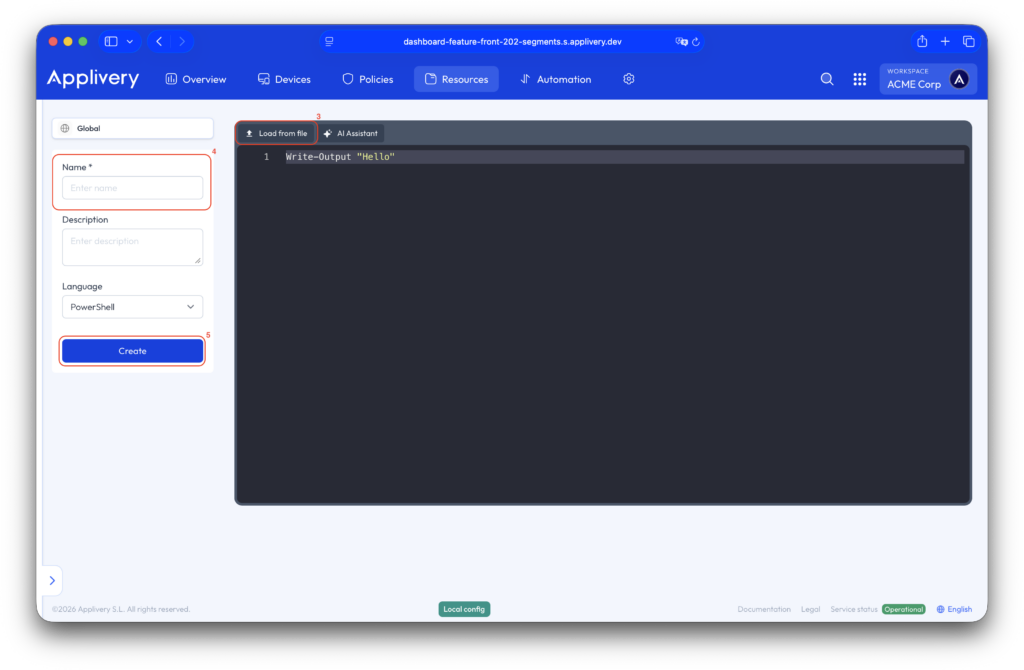
Inside the editor, you can either create a new script or upload an existing one from your device. This flexibility makes it easy to customize your scripts to your needs.
To create a new script, use the interface options and start typing.
To upload an existing script, click Load from file (3) in the editor, choose your script file, and it will be ready to use.
Finally, you must assign it a Name (4) (and optionally, a description), and click on Create (5).
Check the availability in our pricing page.
Step 2 - Assign Scripts to your devices #
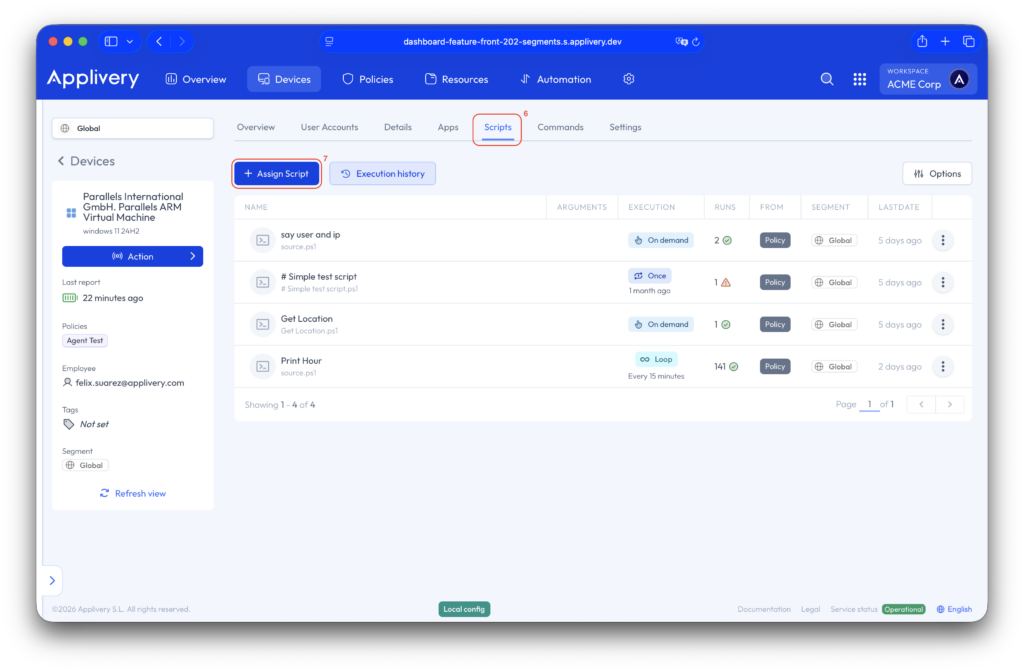
Now, navigate to the Devices section, choose the device to which you want to assign a script, go to the Scripts (6) tab, and click on the + Assign Script (7) button.
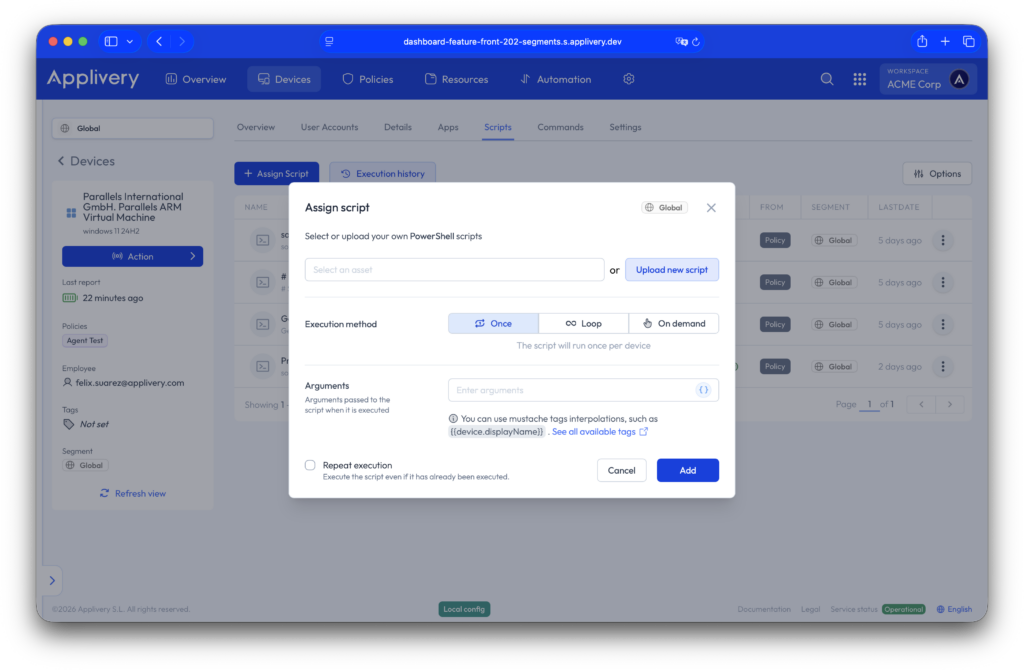
A modal view will appear, allowing you to choose a script from the script section or upload it from your device.
You will also have the option to select the execution method, and add the script’s arguments:
- Once: The script will run once per device. You will also have the option to repeat the execution, even if it has already been executed.
- Loop: The script will run cyclically at the chosen time interval.
- On-demand: The script will never be run automatically and will only be offered as an optional item from Self-Service.
Below, you can find the complete list of mustache tag interpolations for the script arguments. Please note that each argument needs to be separated by double quotation marks (“”):
- “
{{device.id}}“ - “
{{device.displayName}}“ - “
{{device.serialNumber}}“ - “
{{device.osVersion}}“ - “
{{device.chip}}“ - “
{{device.isAppleSilicon}}“ - “
{{device.hostName}}“ - “
{{user.id}}“ - “
{{user.email}}“ - “
{{user.name}}“
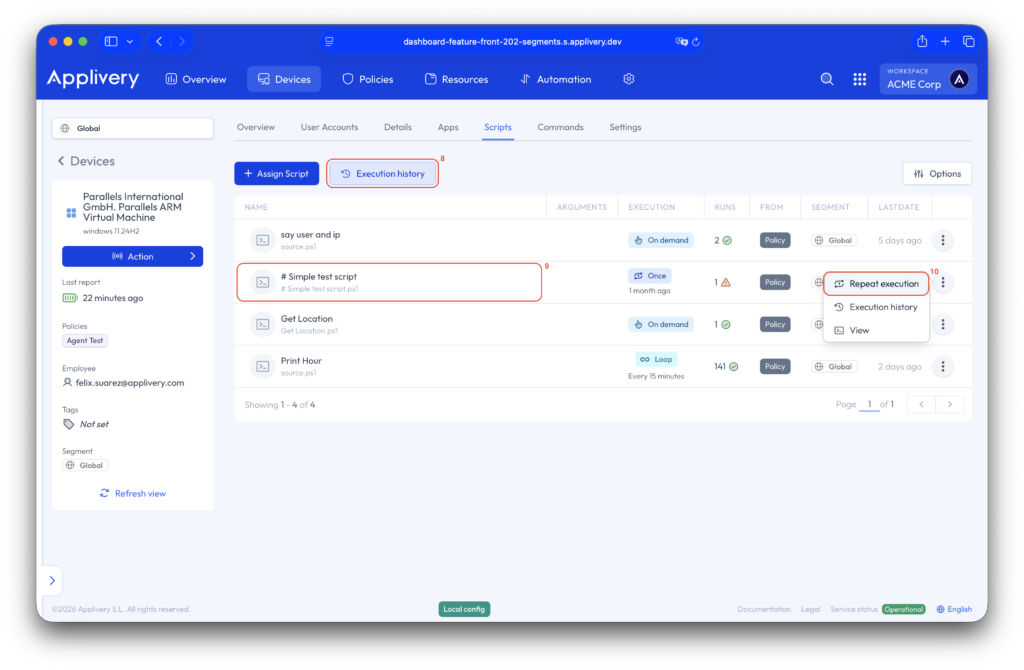
By clicking the Execution history button (8), you can view the execution history of all your scripts.
You can also access the execution history of a specific script by clicking on the script itself (9) or the three vertical dots at the end of the script. Clicking these dots (10) will also display additional actions:
- Edit: Edit the script.
- Unassign: Unassign the script from the device.
- View: View the original script in the asset section.
This ensures that the script will be sent again, regardless of its prior execution history on that device.
Do It Yourself! #
To help administrators accelerate common configurations and operational tasks, Applivery provides a Public Script Repository containing ready-to-use Windows scripts.
This repository includes useful scripts for quick actions and standard configurations, allowing IT teams to deploy common solutions without having to build scripts from scratch.
The goal of this initiative is not only to provide reusable resources, but also to encourage collaboration. The community can actively contribute by submitting scripts that address real-world use cases, helping expand and improve the shared library over time.
By leveraging the Public Script Repository, organizations can reduce implementation time, standardize operational procedures, and benefit from collective expertise.