

It’s Friday afternoon. You’re shipping a policy to every Madrid warehouse tablet, except the three VIP devices that must stay on the old build, and except anything tagged “pilot” that already got a different package yesterday. You know the cohort. Your MDM does not, unless you invent a second audience, a third tag, or a spreadsheet of serials you’ll regret on Monday.
Device Audiences 2.0 is live. Membership is now a recursive filter tree: ALL and ANY groups, seven filter types (including Segment), exclusion operators on the same leaves, nested logic when you need it, and a live Matched devices preview so you see who joins before you save.
Why the old selector stopped scaling
Device Audiences already gave you a saved, dynamic membership set. Automation Rules, Smart Attribute assignment, and similar surfaces still attach to an audience by ID. That contract did not change.
What broke at scale was authoring. Separate selector blocks hid the boolean logic. Exclusions were awkward or missing, so teams maintained carve-out audiences or overused tags as a shadow database. Segment targeting lived outside the same composition model. You could feel the membership you wanted and still not express it cleanly.
What’s new in Device Audiences 2.0
On one screen (Configuration, Devices selection, and Matched devices preview) you now get:
- A recursive filter tree with ALL (AND) and ANY (OR) groups
- Seven filter types: Device tag, Employee tag, Device (by platform), Device employee, Serial number, Smart attribute, and Segment
- Exclusions through operators such as is none of, is not set, and is not assigned (no separate Excluded Devices tab)
- Nested groups so
(shipping AND NOT vip) OR executive-pilotis one audience, not three - Live Matched devices preview with a Selected by column that shows which filter matched each device
- Automatic migration of existing audiences into the new tree
Automation Rules keep picking audiences the same way. You author richer membership; Automation Rules and other consumers still bind to the same audience ID.
Breadth: every filter type that actually defines membership
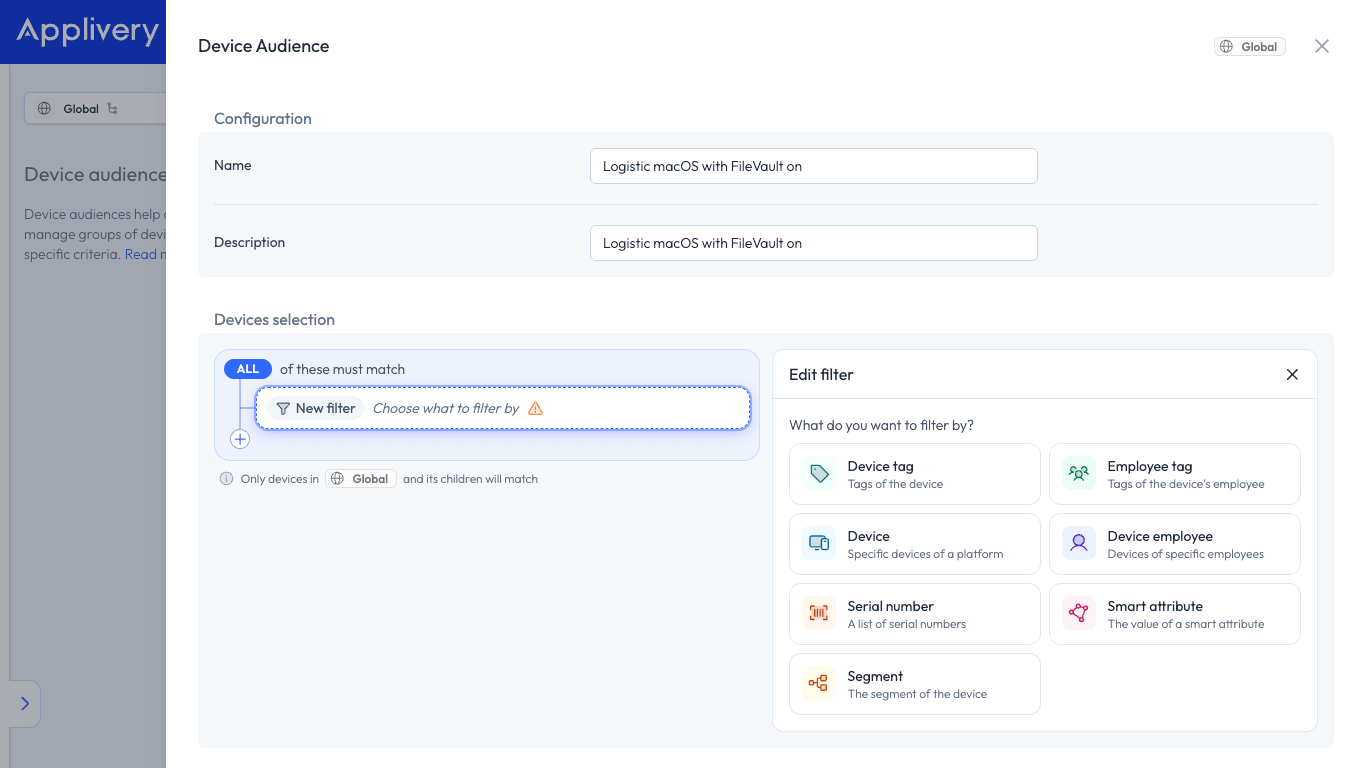
Open Add filter and you pick how the device should qualify. Tags for org slices. Platform device pickers when the list is short and known. Employees when the cohort is people-shaped. Serial numbers when the list is explicit. Smart Attributes when the fact lives in custom metadata. Segment when location in the org tree is the rule.
That mix is the point. Madrid shipping can be a tag. “Only Global, not child segments” can be a Segment leaf. “Finance macOS with FileVault on” can be a Smart Attribute condition. You stop inventing proxies for facts the platform already knows.
Depth: ALL, ANY, nest, and exclude in the same tree
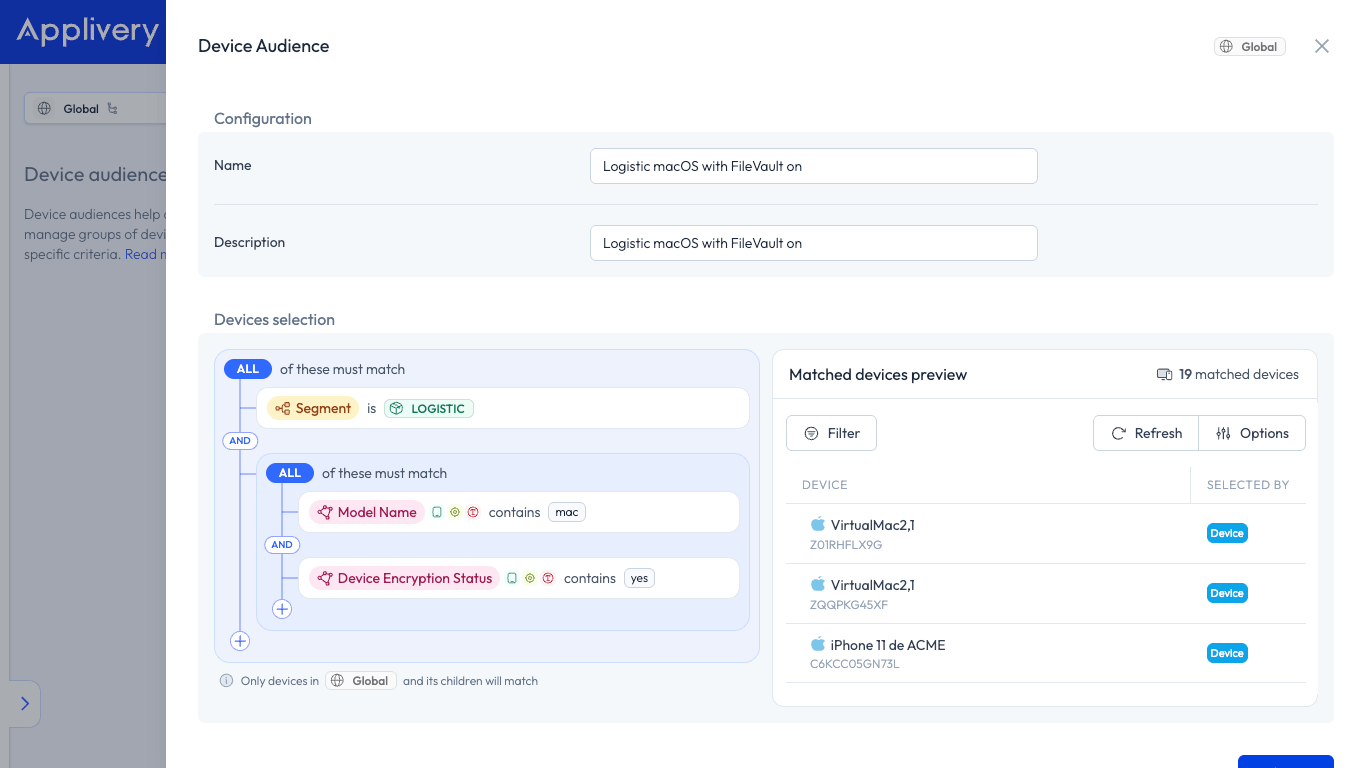
Root groups join children with ALL or ANY. Need a different join inside? Add a nested group. Connectors and badges show AND/OR so the formula is visible while you edit.
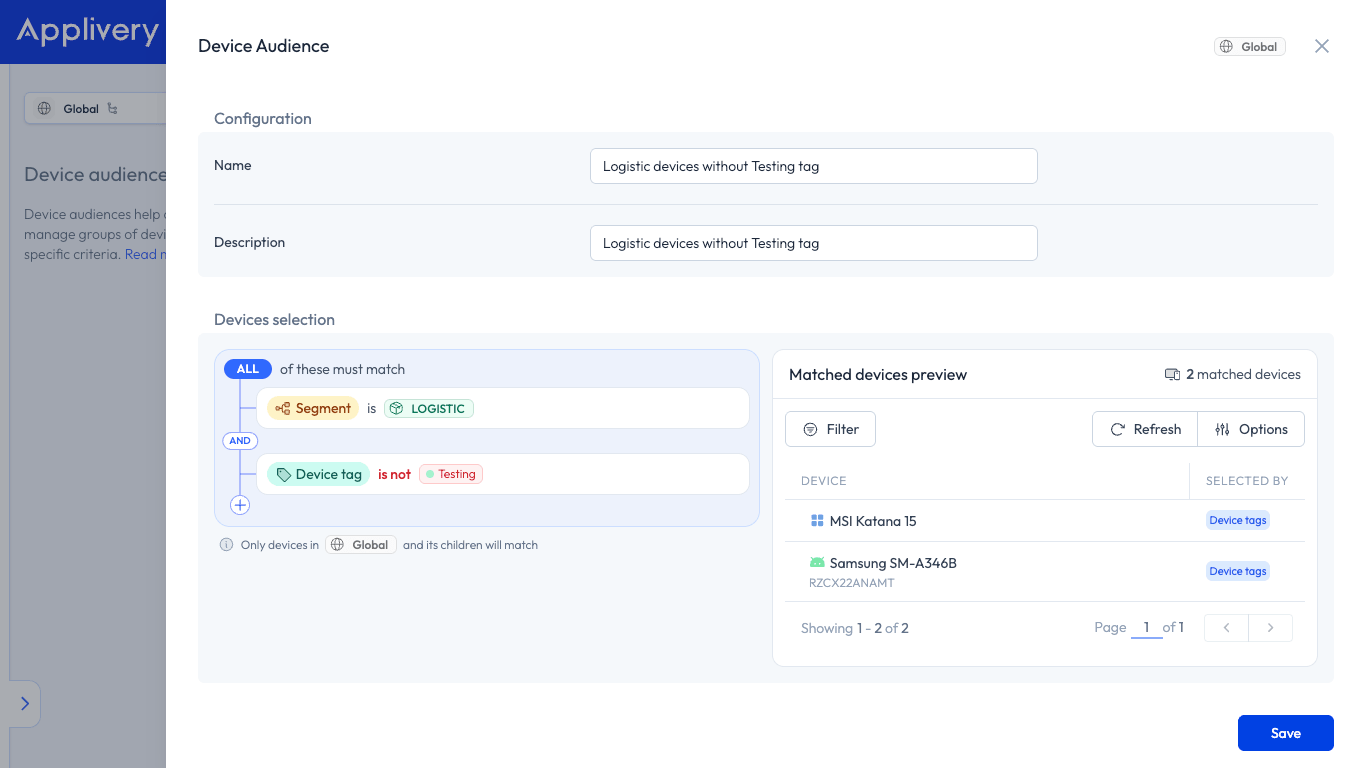
Exclusions sit on the leaf, not in a side tab. Tag is none of vip. Device is none of those three serials. Smart attribute is not assigned. The rollout audience stays one object: include the warehouse cohort, carve out the exceptions, keep Automation Rules pointed at the same ID.
Ease of use: one page, live preview, no rebuild for legacy audiences
You name the audience, build the tree, and watch the right panel update. Matched count and Selected by tell you why each device landed in the set, which helps when a Smart Attribute or Segment leaf surprises you.
Open an audience created before the tree editor and membership appears as filters in Devices selection. Intent is preserved; you edit in the new UI instead of rebuilding from scratch.
Scenarios IT teams recognize
Phased warehouse rollout with VIP carve-out. Root ALL → Device tag is any of shipping-madrid → Device tag is none of vip. Attach your Automation Rule once. When a device loses the shipping tag or gains vip, membership updates without a second audience.
Executive exception without a spreadsheet. Root ANY → Device employee is one of the exec list, or nested ALL → Apple devices is one of a short pilot list and Segment is only this segment for the HQ node. One cohort for the exception policy.
Security quarantine from live posture. Smart Attribute for risk or compliance is high / fails checks → audience membership flips → Automation Rule applies the quarantine policy. Same pattern teams already use with Smart Attributes; the tree makes AND/OR and exclusions explicit instead of implicit.
Where to find it
Device Audiences 2.0 is in the Applivery dashboard under Automation → Device audiences. Create or open an audience and build membership in Devices selection.
For step-by-step configuration, see the Device Audiences documentation. For the custom metadata that often feeds these filters, see Smart Attributes.
If you’re defining a cohort this week, open the audience and express the membership you already have in your head. The tree is there for that.