


Applivery and Chrome 52 bring together the possibility of having full control over Chrome browsing on your Android-managed devices.

With the release of Chrome 52, a new format for filters in
URLBlocklist and URLAllowlist policies was introduced. The possibility to have full control over allowed and blocked URLs in Chrome navigation on your managed devices through Applivery is available for use by deploying and updating the policy.
This update provides greater control over which websites can be accessed and which should be blocked. You only need to add Google Chrome app on your policy and configure the parameters “Allow access to a list of URLs” and “Block access to a list of URLs” to fill this parameters, it’s needed to use a format detailed bellow. 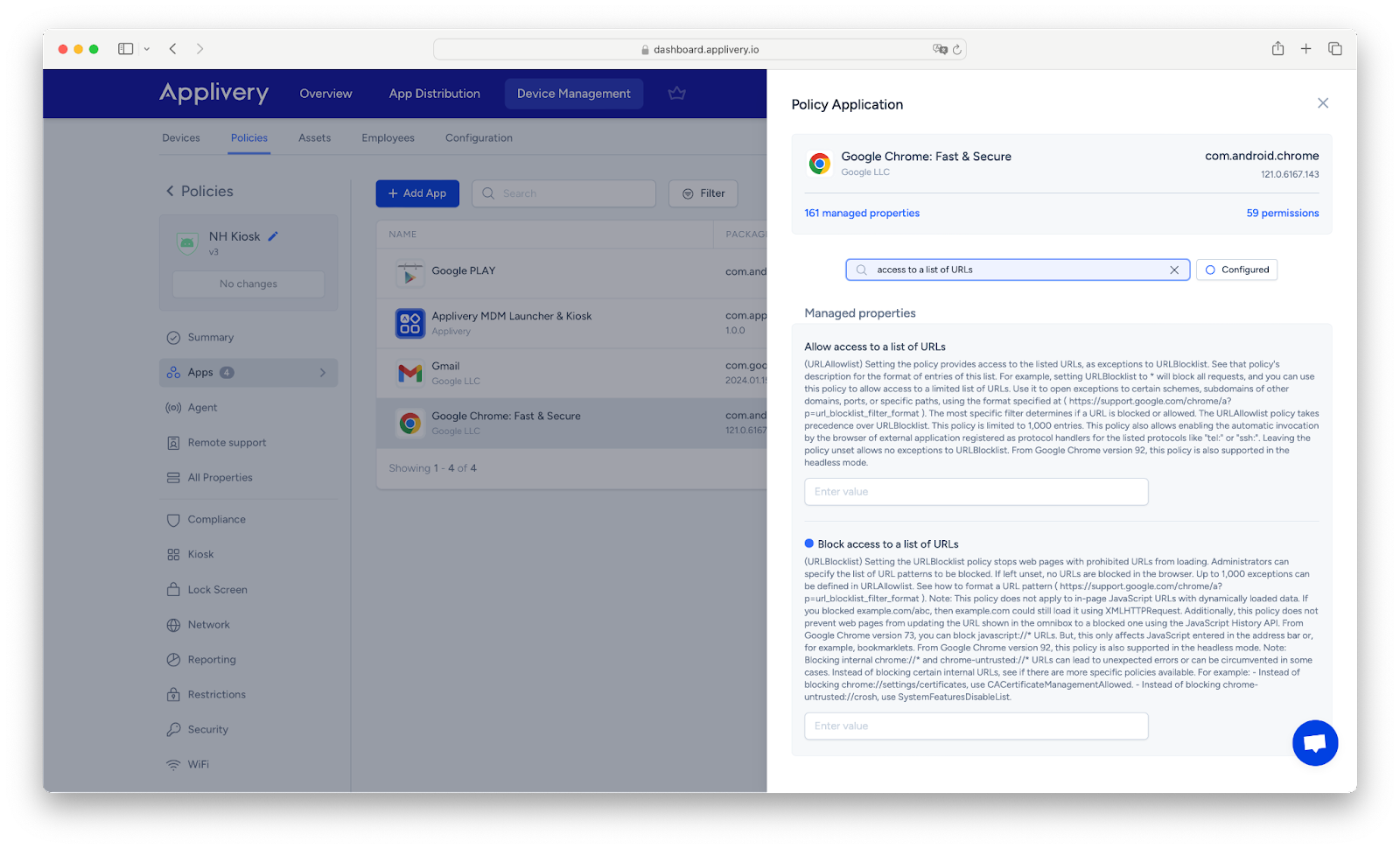
How do I block sites on Chrome?
1. Define your policies
You can use a Template or create a new policy in Applivery, this policy should have the Chrome app installed. You have to decide which URLs you want to allow or block. You can specify these URLs using the provided format.
2. Use the new format
In the managed properties of Chrome inside the policy you will have the configuration Block Access to a List of URLs there you can put the URLs to block. Make sure you use the correct format when specifying the URLs for blocking or allowing.
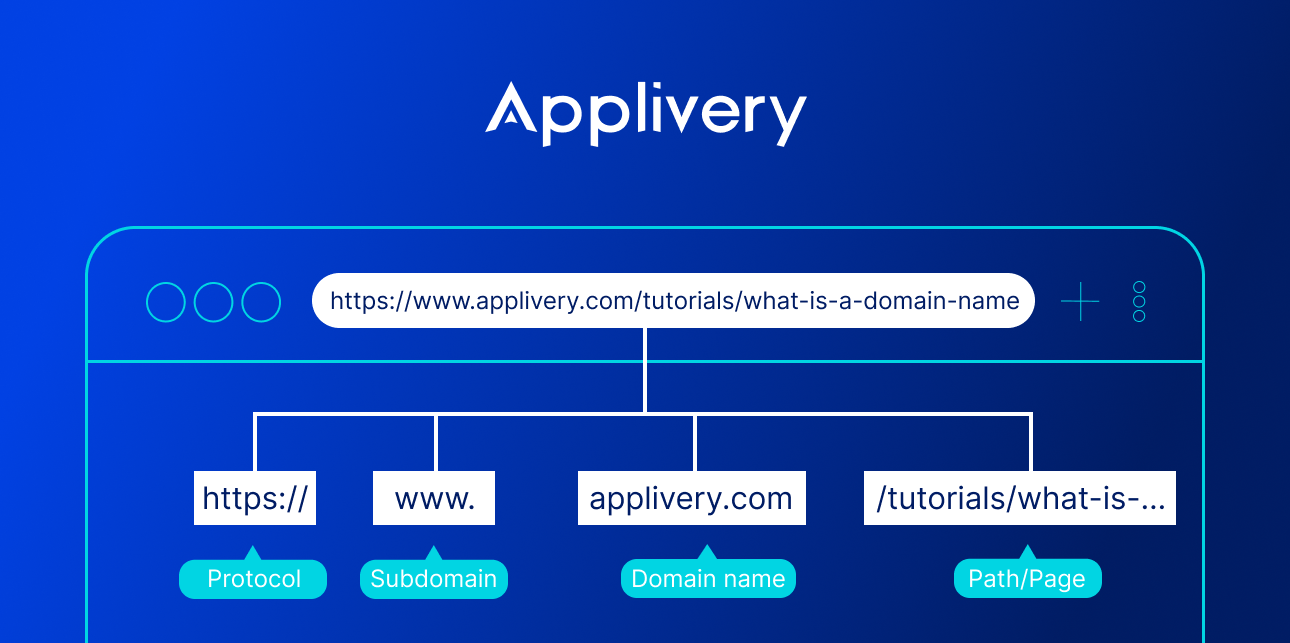
- The format is similar to standard URLs but with exceptions, as described in the documentation.
- You can specify schemes like http, https, ftp, chrome, etc.
- The host field is required and can be a valid hostname, IP address, or '*'.
- An optional port can be specified after the host.
- An optional path can come after the port.
- An optional query can come at the end.
3. Deploy and update the policy
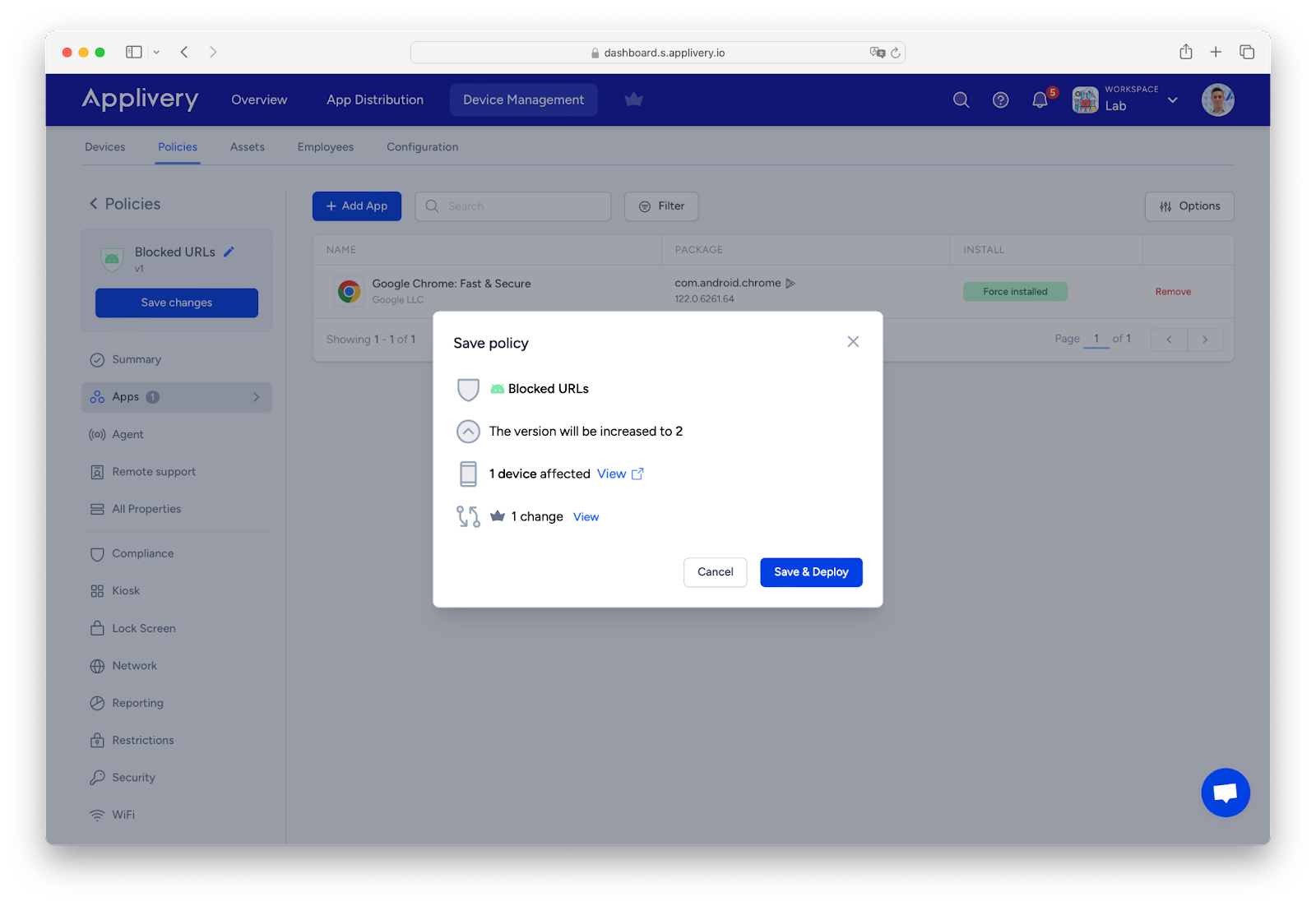
You can manage these policies through Applivery and deploy it to all the devices you need to configure.
In summary, the integration of Applivery and Chrome 52 empowers administrators to control web browsing on managed Android devices. Through the utilization of
URLBlocklist and URLAllowlist functionalities, users can effortlessly block or allow specific URLs as per organizational needs. This heightened control guarantees a safer and more efficient browsing experience, further streamlined by Applivery’s user-friendly interface. Now administrators can customize web access policies to align with organizational objectives, enhancing efficiency, security, and compliance.