

There is a request IT support teams hear every time a new employee joins: “I’m not receiving email on my phone.” The cause is often the same: a typo in the email address during app setup or, in some cases, a personal account added instead of the corporate one.
This can be avoided. The goal of this article is simple: when an employee opens their email app, their corporate account should already be there, without typing the address or selecting a server. How this works depends on one thing: where your email is hosted. Each platform has its native app, whether Google Workspace with Gmail or Microsoft 365 / Exchange with Outlook. Let’s go through each case, without unnecessary jargon and with a focus on what IT teams need to know.
The common piece: sign-in during enrollment
Before talking about Gmail, Outlook or Exchange, there is one common element across the entire flow: sign-in during Android device enrollment.
When an employee activates their Android phone, they sign in with their corporate account. In Android, this is known as sign-in-based enrollment. At that point, Applivery knows who the user is and registers them in the Employee Directory. That identity is what makes it possible to apply personalized configurations without creating a different policy for each person.
That identity is the thread that connects all scenarios:
- If email is hosted in Google Workspace, the corporate Google account is added to the device during enrollment.
- If email is hosted in Microsoft 365 or Exchange, Outlook uses the
{{user.email}}placeholder. - If email is hosted on an on-premise Exchange server, additional parameters may be required, such as server, account name or corporate certificate.
The goal is the same in every case: corporate email is ready on the device without the user having to type their address manually.
Case 1 — Email in Google Workspace with Gmail
This is the most straightforward scenario because there is no email setup to configure. If your company uses Google Workspace, each employee’s corporate Google account is automatically added to the phone during sign-in-based enrollment. The account the employee uses to identify themselves is also their mailbox.
The result: once the employee finishes activating the phone and opens Gmail, their corporate email is already there, with no address to type and no server to choose. The password is not bypassed: the employee entered it during enrollment. Whether Gmail asks for it again depends on your identity system, which we explain in more detail in the “This does not bypass the password” section below.
“In this case, you do not use the automatic app configuration described in Case 2. With Google Workspace, email travels with the corporate Google account itself. You only need to make sure the device is enrolled through sign-in-based enrollment.”
Case 2 — Email in Microsoft 365 with Outlook
When email is hosted in Microsoft 365, the flow changes.
In this case, the app needs to know which account to use. Android has supported this mechanism for years: automatic app configuration, known in the console as managed app configuration.
This allows your device management tool to centrally push app settings, such as the email address and username, without configuring each phone one by one. The app reads those settings when it opens and configures itself.
For Microsoft 365, the native app is Outlook, and that is the app we configure here. We have tested this configuration directly in Applivery. It requires three fields and, because Outlook can discover the server by querying Microsoft’s service, there is no need to define the server manually.
There are three fields, and the account type must be exactly ModernAuth:
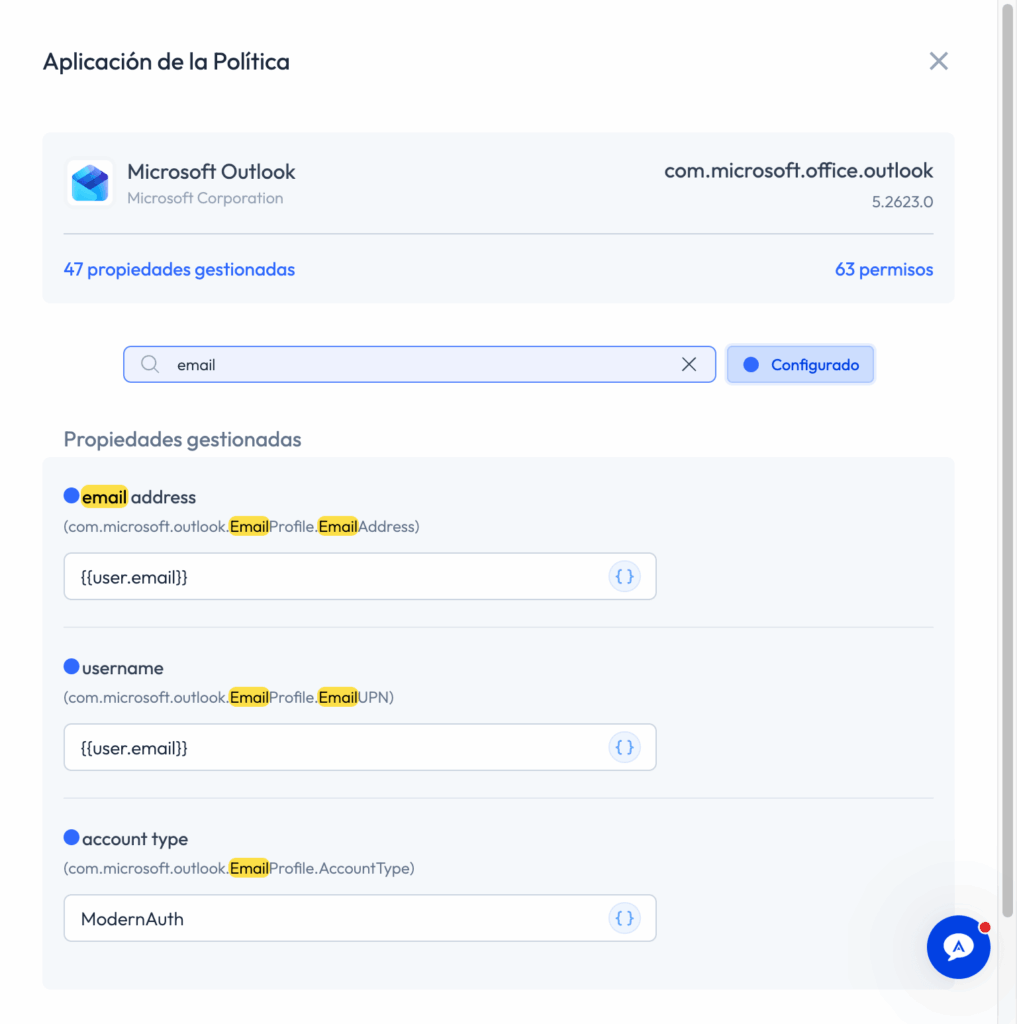
Outlook account settings in Applivery. The email address (EmailProfile.EmailAddress) and user (EmailProfile.EmailUPN) use the {{user.email}} placeholder; server fields remain empty because Outlook autodiscovers them.
{
  "packageName": "com.microsoft.office.outlook",
  "managedConfiguration": {
    "com.microsoft.outlook.EmailProfile.EmailAddress": "{{user.email}}",
    "com.microsoft.outlook.EmailProfile.EmailUPN": "{{user.email}}",
    "com.microsoft.outlook.EmailProfile.AccountType": "ModernAuth"
  }
}| Scenario | Recommended app | What IT configures | What the employee enters |
|---|---|---|---|
| Google Workspace | Gmail | Nothing — the account is added during sign-in | Nothing / the account is already there |
| Microsoft 365 | Outlook | Address + user + AccountType=ModernAuth | Only the password |
| On-premise Exchange | Outlook | Account, server, authentication and certificates if needed | Only the password |
The employee opens Outlook, the app detects that the account is already prepared and only asks for the password.
Case 3 — Email on an on-premise Exchange server
If the company uses on-premise Exchange, the flow is similar to Outlook, but it may require additional information.
You still use Outlook, but add:
- EmailProfile.ServerHostName (the address of your server)
- EmailProfile.EmailAccountName (a visible account name)
- Coloca AccountType set to BasicAuth.
This scenario should be handled more carefully because it depends heavily on the email architecture, Exchange ActiveSync exposure, certificates and the organization’s authentication policy. The recommendation is to always test it with a pilot device before scaling it to the entire workforce.
One policy for the entire workforce
What is the {{user.email}} value used in the examples? It is Applivery’s identity placeholder.
You add it once in the policy, in the email address field, using the {} button:
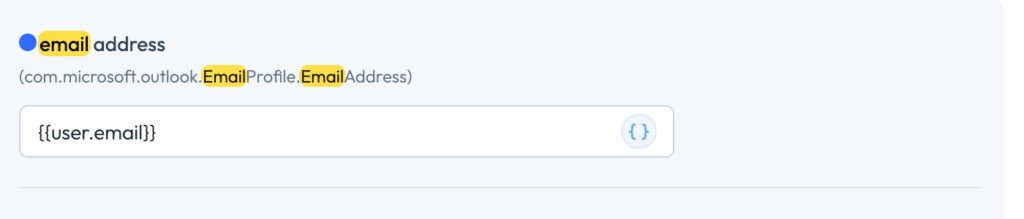
The {{user.email}} placeholder represents the employee. You add it once; when each phone is activated, it becomes that user’s real email address.
When Ana activates her phone, {{user.email}} becomes [email protected]. When Carlos activates his, it becomes [email protected]. One policy serves the entire workforce. There is no need to create a separate policy per person.
The placeholder only fills in what changes from one employee to another: the identity. Everything else, such as server or account type, is the same for the whole company and is configured once.
And this is the key point: in Case 1 (Google Workspace), that same sign-in process is what brings the email account into the device. In Case 2 (Microsoft 365), that same identity is what fills the placeholder. Enrollment identity is the thread that connects both cases.
This does not bypass the password
This is not passwordless sign-in. What the employee avoids is typing the email address and choosing the server, not authenticating. Each scenario handles authentication at a different point.
Case 1 — Google Workspace
The employee authenticates when enrolling the phone. That sign-in goes through your identity system, either directly through Google or through your IdP via SAML if you have federation enabled, including MFA if configured.
After authentication, the managed Google account remains on the device and Gmail reuses that session, so it usually does not ask for the password again when opening email. But “usually” depends on two conditions, and it should not be assumed:
- It must be a real managed Google account, either your Google Workspace domain or Cloud Identity. If enrollment creates a synthetic Managed Google Play account, the mailbox will not be added automatically and you fall into Case 2.
- If you federate through SAML, your IdP is in control. Its session and MFA policies may force Gmail to request login again from time to time. Applivery does not decide that. Test it with a device before promising that experience to the workforce.
Case 2 — Microsoft 365 with Outlook
The employee does not type their email address or search for the server, but they do enter their password the first time.
Outlook’s own documentation explains that, when the account is prepared, Outlook detects it as “Found” and asks the user to add it. The only thing the user needs to enter is their password. That password is validated using modern authentication, OAuth: the employee goes through Microsoft’s sign-in screen, with MFA if enabled, and the device stores a token, not the password.
Basic authentication still exists for legacy on-premise servers, but Microsoft disabled it for Exchange Online in October 2022. With Microsoft 365, it is modern authentication or nothing. That is why Outlook requires AccountType=ModernAuth.
“If you also want to remove the password, meaning a truly passwordless sign-in experience, that is no longer the job of app configuration or account provisioning. It requires platform SSO at the identity system level. What this article covers is provisioning; authentication still belongs to your IdP.”
Quick comparison
| Scenario | Recommended app | What IT configures | What the employee enters |
|---|---|---|---|
| Google Workspace | Gmail | Nothing — the account is added during sign-in | Nothing / the account is already there |
| Microsoft 365 | Outlook | Address + user + AccountType=ModernAuth | Only the password |
| On-premise Exchange | Outlook | Account, server, authentication and certificates if needed | Only the password |
Step by step: Microsoft 365 in Applivery
To configure Outlook on Android devices managed with Applivery, go to Policies → your Android policy → Apps:
1. Select + Add App → Microsoft Outlook and set it as a forced installation.
2. Open its settings and fill in three fields: the address (EmailAddress) and user (EmailUPN) with {{user.email}} using the {} button; and the account type (AccountType) with ModernAuth.
3. Recommended: configure Allowed Accounts, using the key com.microsoft.intune.mam.AllowedAccountUPNs, with {{user.email}}. This helps prevent a personal account from being added to Outlook.
4. Save the policy. When the phone is activated, Outlook detects the account as “Found” and only asks for the password.
For Case 1, Google Workspace, none of this is needed. You only need to ensure that the phone is enrolled through sign-in-based enrollment with the company’s Google account.
Note — Gmail with Exchange. Gmail can also connect to a Microsoft 365 / Exchange mailbox if you provide the server in its own configuration. It is technically possible, but it mixes Google’s app with a Microsoft mailbox and adds another field to configure. To avoid confusion, this guide focuses on the natural pair for each platform: Gmail for Google Workspace and Outlook for Microsoft.
What IT teams gain
Automating the email account in Android Enterprise brings clear benefits for operations, security and user experience.
- One policy for the entire workforce: the placeholder is resolved per user when each phone is activated. No policy per employee and no policy per department.
- No typing errors: if the employee does not type the address, they cannot mistype it. The value comes from the directory, validated at sign-in.
- Minimal user action: with Google Workspace, email is already there. With Microsoft 365, the user only enters the password.
- Consistent results across all devices: the outcome does not depend on who configured the phone.
What to verify before deployment
Before applying this configuration to the entire workforce, validate a few points:
- The employee must sign in when activating the phone. This is what allows Google Workspace email or the Microsoft 365 placeholder to know who the user is. With anonymous QR enrollment and no sign-in, there is no identity.
- If the placeholder remains empty, the phone still enrolls correctly, but the email account will not be configured. This usually happens because the Employee Directory does not have that person’s email synchronized from your identity system. Test it with a device before rolling it out to everyone.
- Sign-in-based enrollment is part of Applivery’s Enterprise plan. Keep this in mind when planning the rollout.
- Case 1, Google Workspace, assumes a real managed Google account: your managed Google Workspace or Cloud Identity domain. If enrollment creates a synthetic Managed Google Play account, the mailbox will not be added automatically and the device should be handled like Case 2, Outlook with Microsoft 365.
- This guide covers Android, specifically Android Enterprise. On iPhone and iPad, email is provisioned differently, through MDM configuration profiles rather than Android managed app configuration. Sign-in-based enrollment with a Google account does not apply. It is a different flow and is outside the scope of this article.
- This configures the corporate account, not personal
@gmail.comor@outlook.comaccounts.
Summary
- The goal: the employee opens email on the phone and the corporate account is already there. At most, they enter their password.
- How it works depends on where your email is hosted. With Google Workspace, the account is added to Gmail during sign-in, without additional email configuration. With Microsoft 365 / Exchange, the account is filled in through Outlook’s automatic app configuration, using three fields, or a few more if Exchange is on-premise.
- The common thread is sign-in during device activation. It registers the employee in the directory and resolves the
{{user.email}}placeholder. - One policy serves the entire workforce, and security does not change: the password still belongs to the employee.
Before rolling it out to everyone, run a two-minute check: open the Outlook settings in your Microsoft 365 test policy and see which placeholders are available through the {} button in your account. If {{user.email}} appears and resolves correctly, the mechanism works and you can scale it. If your email is in Google Workspace, simply confirm that the phone is enrolled through sign-in-based enrollment.