

We tend to think of Shadow IT as the .dmg, .exe, or .pkg files a user installs outside the corporate catalog. Not always. This week, a malicious extension installed in an employee’s IDE cost one of the most critical vendors in the collaborative code ecosystem unauthorized access to thousands of internal repositories.
The Shadow IT your EDR doesn’t see is the kind that enters through the browser or IDE marketplace. It installs in thirty seconds, inherits the active user’s permissions, and never touches compliance.
You can’t always stop an attacker from publishing a malicious extension. You can stop it from ever reaching a corporate endpoint. Today we’re publishing a ready-to-deploy Apple policy that closes the widest and most accessible attack surface, the browser, across Chrome, Edge, Firefox, and Safari, from a single .mobileconfig profile that imports directly into Applivery.
The pattern: extensions as a Supply Chain Vector
Browser and IDE extensions share a permission model that makes them the weakest link on the modern endpoint. They install from a public marketplace without involving IT, with permissions inherited from the active user. Classic EDR doesn’t catch them at install time because, at that moment, they aren’t malware. They become malware later.
| Vector | Inherited permissions | Classic coverage | UEM control |
|---|---|---|---|
|
VS Code / Cursor extensions |
User process, full access to $HOME, ~/.ssh, ~/.aws, .env |
None |
Inventory + allow-list (custom) |
|
Extensiones Chrome / Edge |
Browser process, DOM and storage access across all pages |
EPP (variable) |
Native configuration profile |
|
Firefox extensions |
Browser process, DOM, cookies, history |
EPP (variable) |
Native configuration profile |
|
Safari extensions |
Partial sandbox, access to browsing data and page content |
Partial |
Native configuration profile |
Classic Shadow IT was an app installed by bypassing IT. Shadow IT in 2026 is an extension installed in thirty seconds from a public marketplace, running with user permissions and never touching compliance. Same problem, different surface.
The policy: one profile, four browsers
A unified Apple MDM policy that blocks any extension installation attempt across the four major browsers. End users see an informative message in their language when a blocked extension is attempted. Conservative posture: all extensions are blocked by default, ideal for regulated fleet environments or as a starting point before defining a corporate allow-list by publisher.
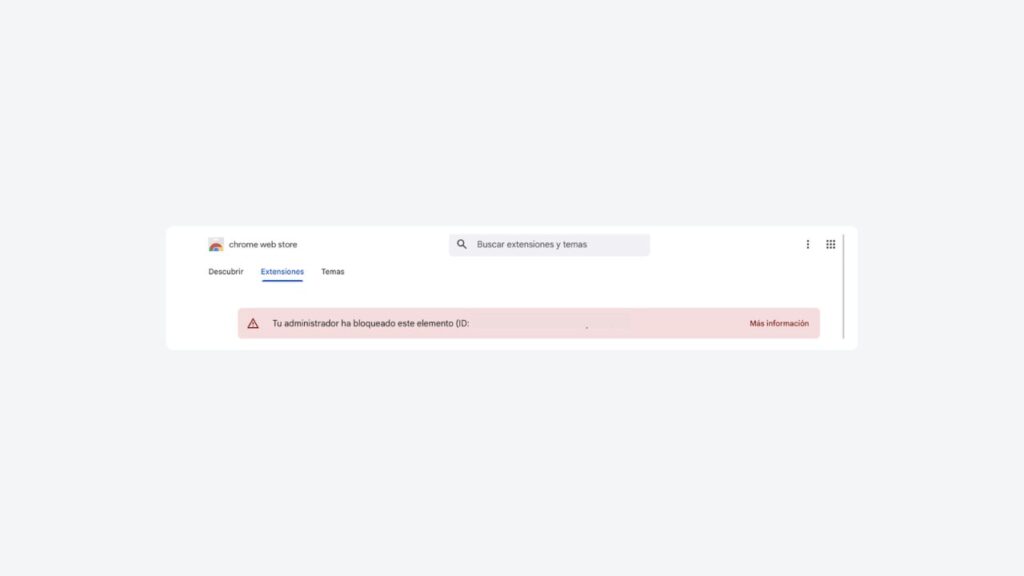
This is what a user sees when they try to install an extension that falls outside the policy, the browser blocks it before downloading and the user receives an informative message:
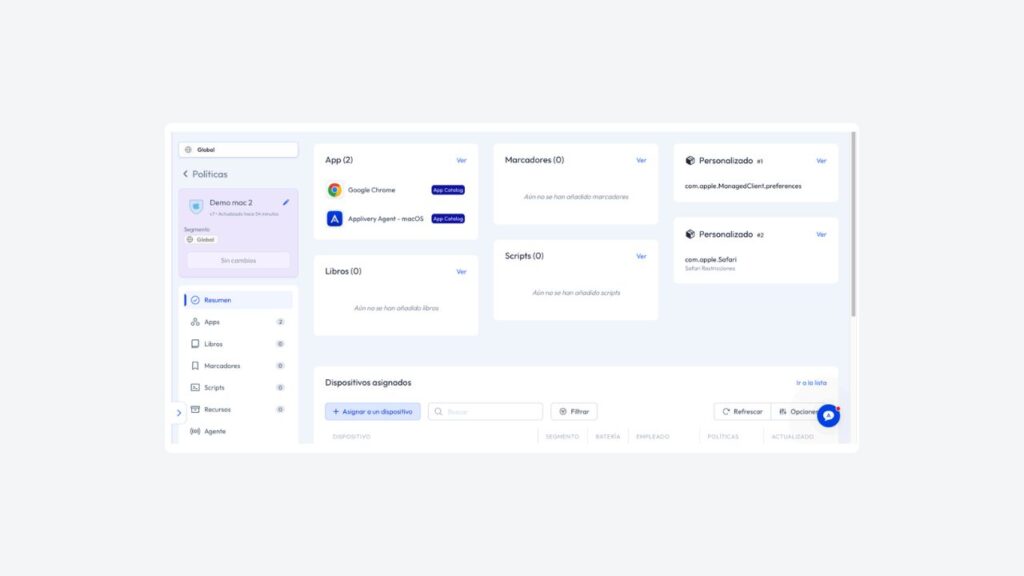
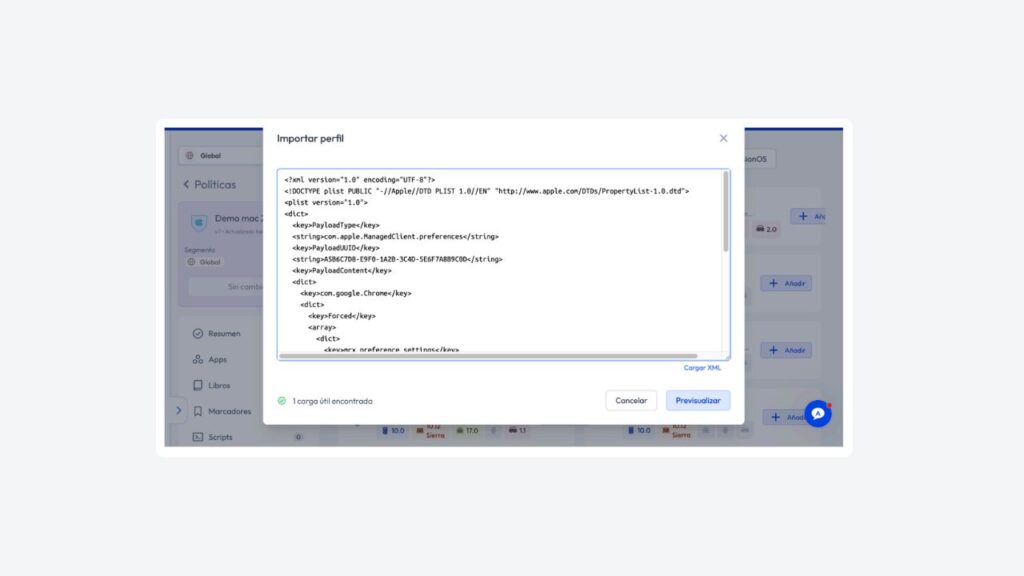
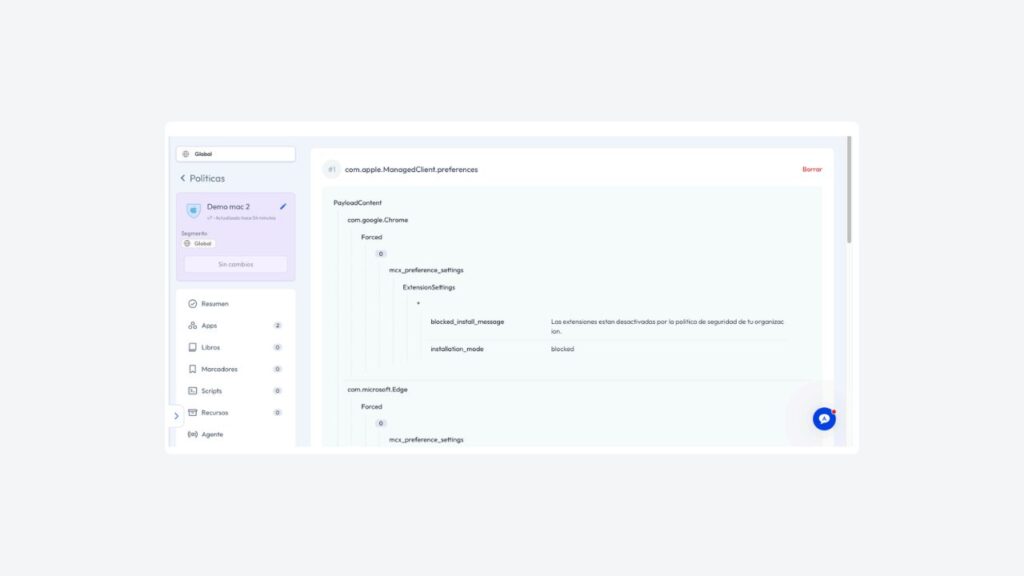
The policy is a single Apple .mobileconfig file (XML plist) that combines two PayloadContent entries inside a standard Configuration profile. This is exactly what you paste into the Import Profile modal textarea, Applivery validates the structure and converts it into the two Custom payloads that appear in the console:
  PayloadType        Configuration
  PayloadVersion     1
  PayloadIdentifier  com.applivery.extensionblock
  PayloadUUID        F0E1D2C3-B4A5-9687-7890-1A2B3C4D5E6F
  PayloadDisplayName Bloqueo de extensiones — Browsers (macOS)

  PayloadContent


    <!-- ───── Payload #1: Chrome / Edge / Firefox ───── -->

      PayloadType        com.apple.ManagedClient.preferences
      PayloadUUID        A5B6C7D8-E9F0-1A2B-3C4D-5E6F7A8B9C0D
      PayloadIdentifier  com.applivery.extensionblock.browsers
      PayloadDisplayName Bloqueo extensiones — Chrome / Edge / Firefox

      PayloadContent

        com.google.Chrome
        Forced
          mcx_preference_settings
            ExtensionSettings
              *
                installation_mode       blocked
                blocked_install_message Las extensiones estan desactivadas por la politica de seguridad de tu organizacion.


        com.microsoft.Edge
        Forced
          mcx_preference_settings
            ExtensionSettings
              *
                installation_mode       blocked
                blocked_install_message Las extensiones estan desactivadas por la politica de seguridad de tu organizacion.


        org.mozilla.firefox
        Forced
          mcx_preference_settings
            EnterprisePoliciesEnabled
            ExtensionSettings
              *
                installation_mode       blocked
                blocked_install_message Las extensiones estan desactivadas por la politica de seguridad de tu organizacion.


    <!-- ───── Payload #2: Safari ───── -->

      PayloadType        com.apple.Safari
      PayloadUUID        C4F7E77A-9238-4BD5-A538-C12B577DE302
      PayloadIdentifier  com.applivery.extensionblock.safari
      PayloadDisplayName Safari Restricciones

      ExtensionsEnabled
      DidDisableIndividualExtensionsAfterRemovingOnOffSwitchIfNecessary
Profile anatomy
Configuration profile wrapper
PayloadType: Configuration identifies this as an aggregator container, it doesn’t apply configuration on its own, it groups other payloads. PayloadIdentifier and PayloadUUID are unique identifiers: change them if you need to deploy profile variants for different device groups.
Payload #1 — com.apple.ManagedClient.preferences (Chrome / Edge / Firefox)
This native macOS payload injects Managed Preferences into third-party applications. We use it to feed the policy schemas that Chrome, Edge, and Firefox read as organization-managed devices:
- Each browser is identified by its bundle ID (com.google.Chrome, com.microsoft.Edge, org.mozilla.firefox).
- Under Forced > mcx_preference_settings, the ExtensionSettings key is declared with a wildcard * that matches any extension.
- installation_mode: blocked prevents installation; blocked_install_message defines the text the user sees.
- Firefox also requires EnterprisePoliciesEnabled: true without that flag, Firefox ignores any managed preference.
Payload #2 — com.apple.Safari
- ExtensionsEnabled: false disables the Safari extensions subsystem entirely.
- DidDisableIndividualExtensionsAfterRemovingOnOffSwitchIfNecessary: true covers the edge case where a user manages to re-enable the global switch, each individual extension remains disabled separately.
Quick customization
| If you want to… | Change… |
|---|---|
|
Customize the message shown to the user |
The blocked_install_message value in each browser payload. |
|
Allow specific extensions (password manager, etc.) |
Add entries by extension ID with installation_mode: allowed inside ExtensionSettings, keeping * as the blocked default. |
|
Deploy to multiple groups with different configs |
Duplicate the profile changing PayloadIdentifier and PayloadUUID. |
How to import in Applivery
You don’t need to build the profile key by key in the editor: Applivery accepts the .mobileconfig (or equivalent XML) directly. The flow from the console takes three clicks.
- In Policies, open the Add configuration tab and click Import.
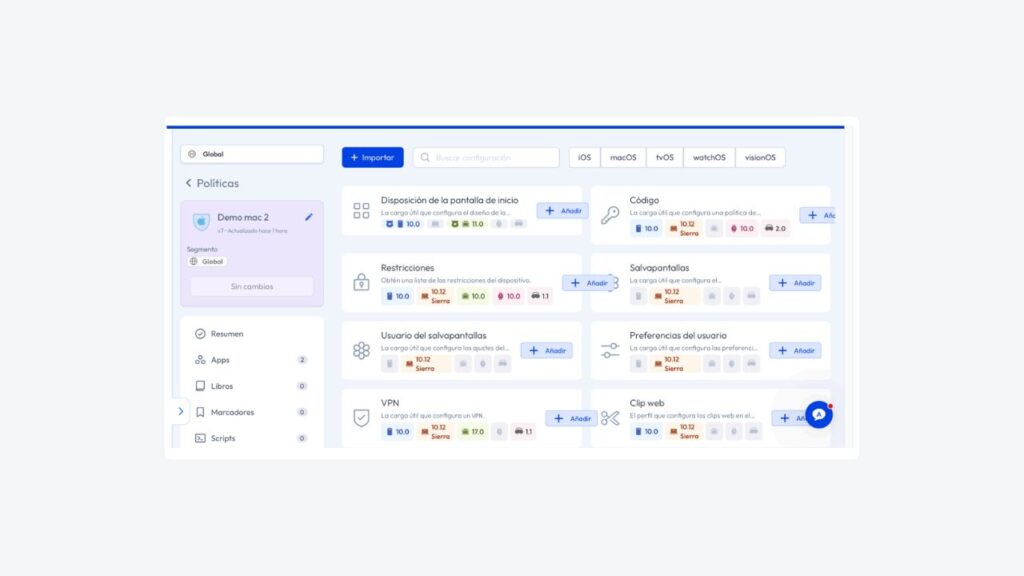
2. Paste the profile XML or upload it as a file from Load XML. Applivery validates the structure and shows a preview.
3. After previewing and confirming, the profile appears as Custom #N in the policy, ready to be assigned to the device group.
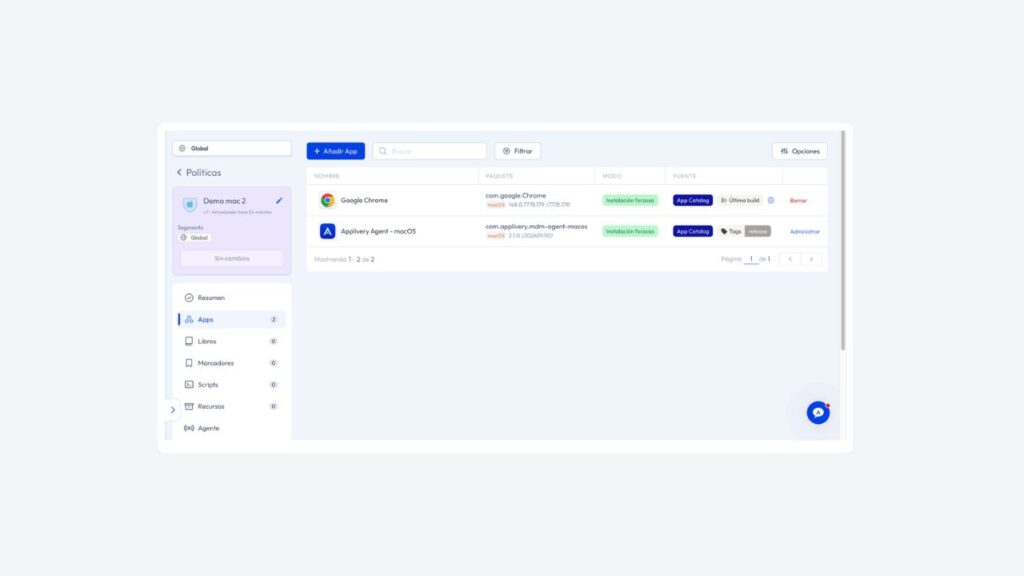
The apps bundled with the policy (Chrome + Applivery Agent) appear in the Apps tab as force-installed.
IDE extensions: the second layer
The browser is the widest vector, but not the only one. VS Code, Cursor, and JetBrains extensions share exactly the same permission model, and that’s precisely the surface the attacker exploited in this week’s incident. We address it with a second layer, also deployed from Applivery: an audit script that enumerates installed extensions on the endpoint, normalizes them to the publisher.extensionName format, and compares them against the corporate allow-list.
On macOS the script runs in Bash, traversing ~/.vscode/extensions/, ~/.cursor/extensions/, and ~/Library/Application Support/JetBrains/<product>/plugins/, computing the SHA-256 of each package and writing an auditable log to /var/log/applivery-extension-audit.log.
On Windows, the equivalent runs in PowerShell, enumerating %USERPROFILE%.vscode\extensions and applying the same allow-list comparison logic.
Deployment in Applivery is straightforward: upload the .sh and .ps1 to Workspace Resources, then attach them from the Scripts section of the corresponding Apple or Windows policy for periodic execution on devices in the group. From that point forward, results are logged in the policy history.
Browser extensions are now an auditable control
Endpoint software control has moved from best practice to explicit auditable requirement.
| Standard | Applicable control | What it requires |
|---|---|---|
|
ISO 27001:2022 |
A.8.7 — Protection from malware |
Mechanisms for prevention, detection, and recovery against malicious software |
|
ISO 27001:2022 |
A.8.19 — Installation of software on operational systems |
Procedures to manage software installation on production systems |
|
ENS (RD 311/2022) |
op.exp.2 — Security configuration |
Hardened configuration based on system category |
|
ENS (RD 311/2022) |
mp.sw.2 — Acceptance and commissioning |
Prior validation of software before production deployment |
Having browser extensions without documented controls is one of the most common findings in endpoint audits in 2026 — and one of the easiest to close with a well-written configuration profile.
This profile doesn’t replace your EDR or SIEM. It closes the door before the attacker reaches the endpoint.
Is your fleet ready?
If your macOS or Windows fleet still doesn’t have an extension policy, this profile is the fastest starting point you can deploy today.
For environments with ENS or ISO 27001 on the horizon, our consulting team can help you map the controls you’re missing before the audit.
Frequently Asked Questions (FAQ)
What is the extension vector and why is it a security risk for the endpoint?
The extension vector is the attack surface that opens up when employees can install browser or IDE extensions without going through an IT validation process. Unlike traditional software, extensions install in seconds from a public marketplace, inherit the active user's permissions, and are not detected by classic EDRs at the time of installation.
In 2026, this vector is one of the most exploited in supply chain attacks: an extension that appears legitimate can become malware after a silent update.
Can you block the extension vector on macOS without deploying additional agents?
Yes. macOS allows you to manage Chrome, Edge, Firefox, and Safari extensions through standard Configuration Profiles (.mobileconfig), which any MDM solution can deploy without additional agents on the endpoint. A single profile with two payloads covers all four major browsers.
What is the difference between blocking extensions in Chrome/Edge/Firefox versus Safari?
Chrome, Edge, and Firefox use the macOS Managed Preferences schema (com.apple.ManagedClient.preferences) with the ExtensionSettings key and a wildcard that blocks any extension by default.
Firefox also requires explicitly enabling EnterprisePoliciesEnabled: true — without that flag, Firefox ignores any managed preference. Safari, as a native Apple system app, uses its own payload (com.apple.Safari) with the ExtensionsEnabled: false key.
Is it possible to allow specific extensions while blocking everything else?
Yes. Within ExtensionSettings you can add entries by extension ID with installation_mode: allowed, keeping the wildcard * as the blocked default. This lets you build a corporate allow-list without removing the general block.
Does this approach also cover VS Code, Cursor, or JetBrains extensions?
The .mobileconfig profile covers browser extensions only. IDE extensions — VS Code, Cursor, JetBrains — share the same risk model but require a second layer: an audit script that enumerates installed extensions and compares them against a corporate allow-list. On macOS the script runs in Bash; on Windows, in PowerShell. Both can be deployed from Applivery as periodic scripts attached to the device group policy.
Which compliance frameworks require controlling the extension vector?
ISO 27001:2022 covers it under A.8.7 (protection from malware) and A.8.19 (installation of software on operational systems). The Esquema Nacional de Seguridad (RD 311/2022) requires it under op.exp.2 (security configuration) and mp.sw.2 (acceptance and commissioning). Having browser extensions without documented controls is one of the most common findings in endpoint audits in regulated environments.