


Device policies are the core element of MDM management in Applivery. They define how devices are configured, secured, and controlled, allowing organizations to centrally apply settings, restrictions, applications, and security measures across their fleet.
Although each operating system has its own capabilities and limitations, the policy creation workflow follows the same logic for Apple, Android, and Windows. This unified approach makes it easy to manage heterogeneous environments while still taking advantage of platform-specific features.
What is a policy #
A policy is a collection of configurations that define how a device behaves once it is managed. Depending on the platform, a policy may include system restrictions, security settings such as passcodes or encryption, application installation rules, scripts or automated actions, integrations with security services, and even kiosk mode configurations.
Policies are assigned to individual devices or groups of devices, enabling scalable, flexible, and dynamic management as your environment grows or changes.
Supported platforms #
Applivery supports platform-specific policies for the following operating systems:
- Apple (iOS, iPadOS, macOS).
- Android.
- Windows.
Each policy targets a single platform, as management capabilities and configuration options differ between operating systems.
How to create a new policy #
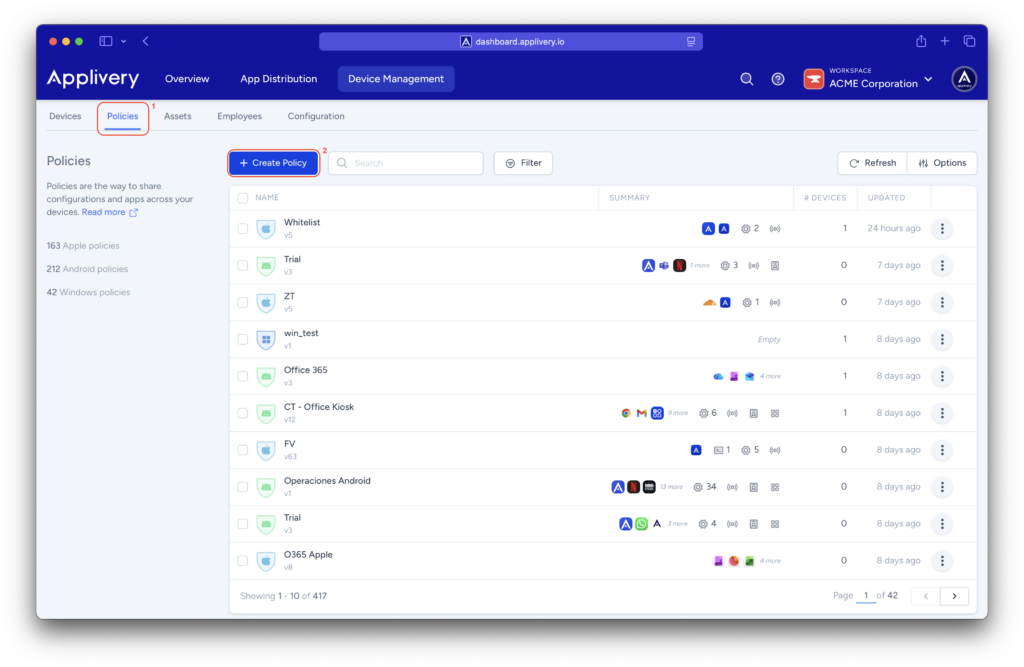
Once in the Applivery Dashboard, navigate to the Policies (1) section (under Device Management) and click the + Create Policy button (2).
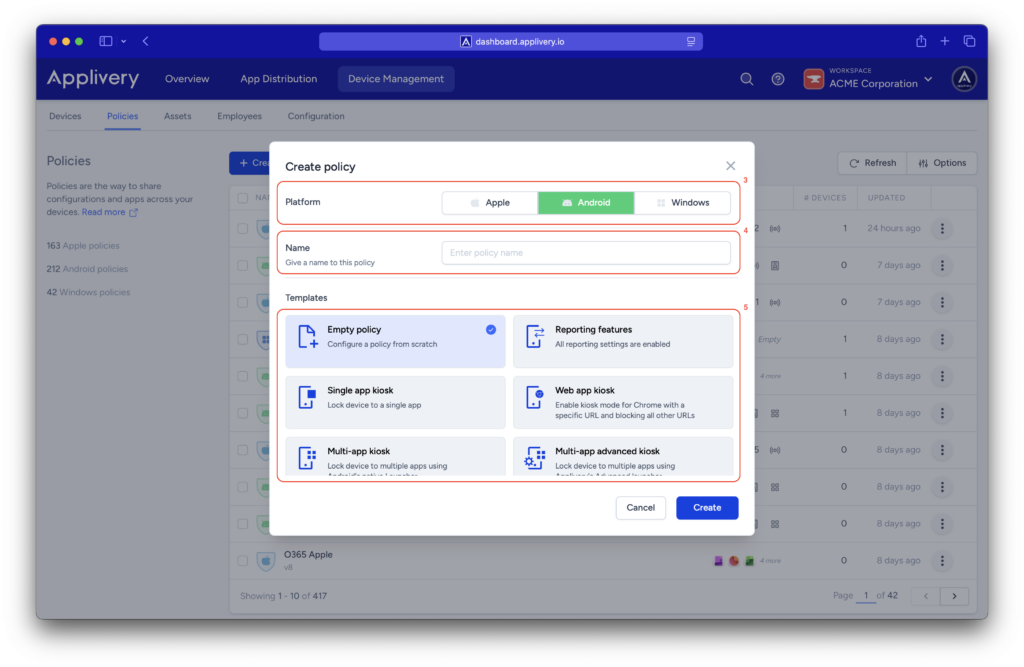
Choose the operating system (3) that the policy will apply to: Apple, Android, or Windows. A policy can only be associated with one platform.
Give the policy a clear and descriptive name (4) that reflects its purpose or target audience. Consistent naming conventions make long-term maintenance and scalability much easier.
Applivery allows you to create policies in two (5) different ways:
- Empty policy, which starts from scratch and is ideal for highly customized environments.
- Template-based policy, available for Apple, Android, and Windows. Templates cover common use cases such as single-app or multi-app kiosk mode, secure password enforcement, Wi-Fi configuration, or restricted device setups. Using templates speeds up policy creation and applies recommended default settings.
Policy configuration #
After creating the policy, you can add configurations based on the selected platform.
For Apple devices, this includes passcode and auto-lock settings, system restrictions, configuration profiles, scripts, apps and books, network settings, and security controls.
For Android, policies may include kiosk configurations, system restrictions, setup actions, managed applications, security settings, and network configurations.
For Windows, available options include scripts, application installation, security configurations, system restrictions, and update management.
Assigning a policy to devices #
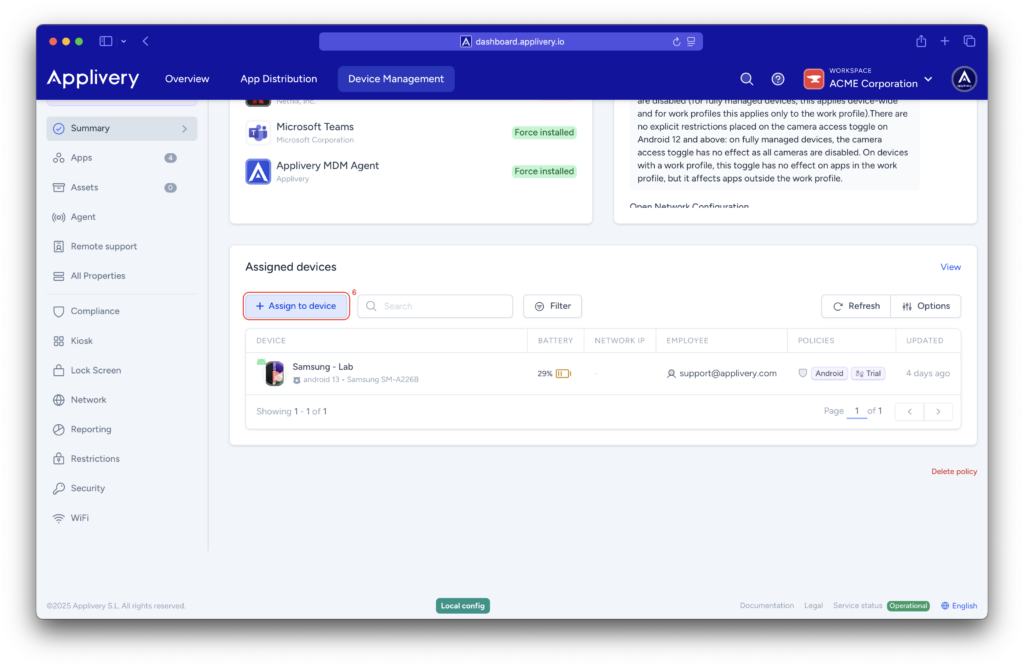
Once the policy is configured, it can be assigned directly from the policy dashboard. Click + Assign to device(6), select the target device or devices, and confirm the assignment. The policy will then be applied automatically.
Applivery policies provide a unified, flexible, and scalable way to manage Apple, Android, and Windows devices. Carefully defining the platform, selecting the appropriate policy type, and assigning policies to the right devices is essential to maintaining a secure, reliable, and easy-to-manage environment. A well-designed policy strategy reduces operational errors, strengthens security, and supports long-term growth of your MDM deployment.