


Applivery’s Automation Rules are a device orchestration mechanism that enables administrators to define automated business logic for the life cycle management and configuration of mobile and desktop devices.
An Automation Rule consists of a Device Audience definition that, when met, automatically triggers one or more actions on devices that satisfy the criteria.
This allows you to dynamically apply configurations, security policies, or app deployments without manual intervention.
Creating an Automation Rule #
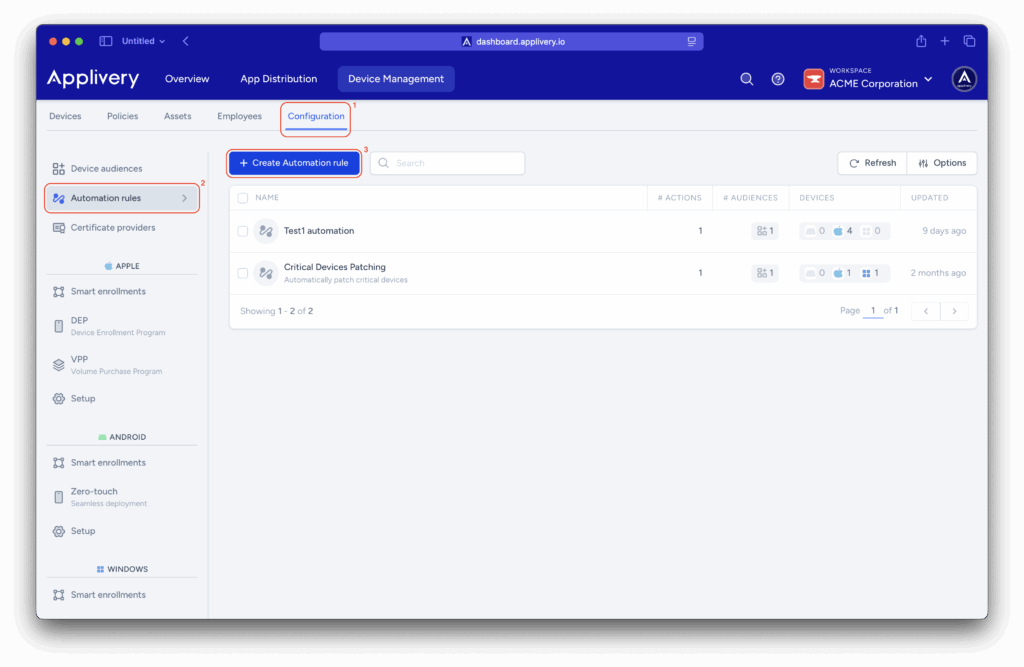
Once in the Applivery Dashboard, navigate to the Configuration (1) section (under Device Management). From the left side menu select Automation rules (2) and click the + Create Automation rule button (3).
Configuration #
- Name: A unique and descriptive identifier for the rule.
- Description (Optional): A brief explanation of the rule’s purpose.
Devices audience #
The Device Audience defines which devices will be affected by the rule’s actions. Devices are selected based on:
- Device tags: Metadata associated with devices, such as location (Madrid, Nursing), operating system (iOS, Android, Windows), or device type (iPhone, Tablet).
- Employee tags: Metadata associated with the user assigned to the device.
- Serial numbers: Explicit selection of individual devices by their unique serial numbers.
- Add device / Add employee: Manually include specific devices or users.
You can learn more about Device Audiences by following this link.
Actions #
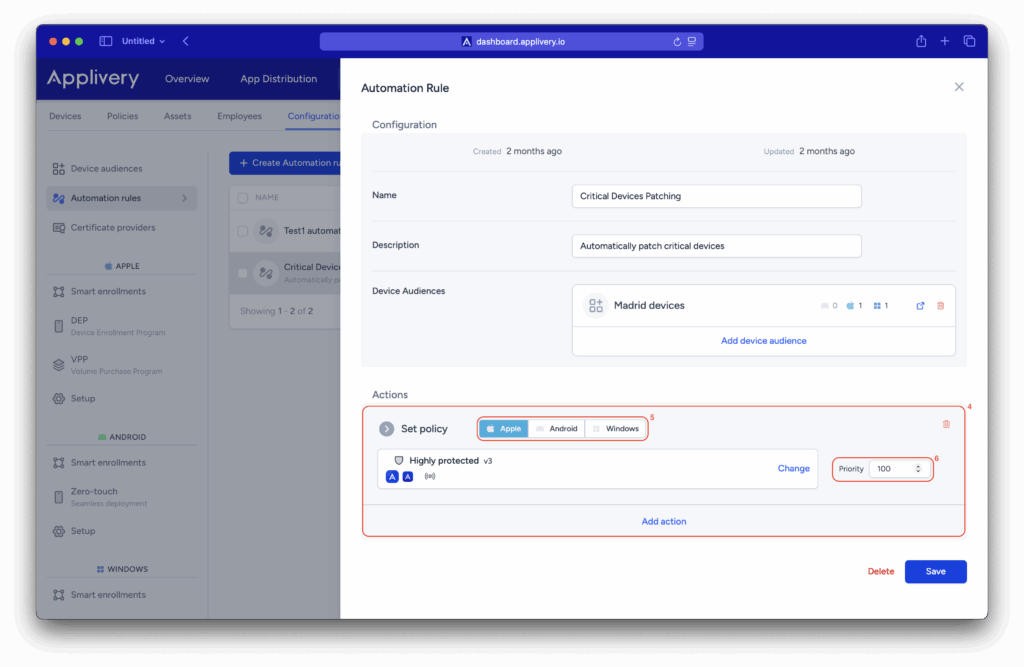
Actions define what the system will execute on devices that match the defined audience. The most common action is to Set a policy (4), which applies a previously defined configuration policy to the selected devices.
When configuring this action, you specify the target platform (5), such as Apple, Android, or Windows, to determine which devices the policy applies to.
You also assign a numeric priority (6) value, for example, 100. If multiple rules affect the same device, the system applies the policy associated with the rule that has the highest priority (with lower numbers indicating higher priority). This ensures consistent and predictable behavior across the fleet.
Automation Rules continuously evaluate devices to determine if they meet the defined audience criteria. When a device matches, the specified actions—such as applying a policy—are automatically executed. If the device no longer meets the criteria, actions can be reverted or updated according to the rule’s configuration. This ensures devices always reflect the intended settings and simplifies fleet management by enabling automatic segregation and configuration based on metadata.