


Integrating Microsoft Entra ID (formerly Azure Active Directory) with Applivery allows organizations to tie device enrollment directly to their corporate identity system. By leveraging Entra ID, users can enroll devices using their existing credentials while IT teams maintain centralized control over access, security, and policy assignment.
This integration connects identity and device management, reducing manual work, improving security posture, and ensuring that devices are always associated with the correct users and groups.
Why use Entra ID for enrollment? #
Using Microsoft Entra ID as part of your enrollment strategy provides several key benefits:
- Single Sign-On (SSO): Users enroll devices with their standard corporate credentials, eliminating the need for additional usernames or passwords.
- Automated provisioning: Users and groups are synchronized automatically, ensuring that the appropriate policies and configurations are applied based on identity.
- Enhanced security: Support for Multi-Factor Authentication (MFA) and immediate access revocation when a user leaves the organization strengthens overall security.
Step 1 - Access the Entra ID configuration in Applivery #
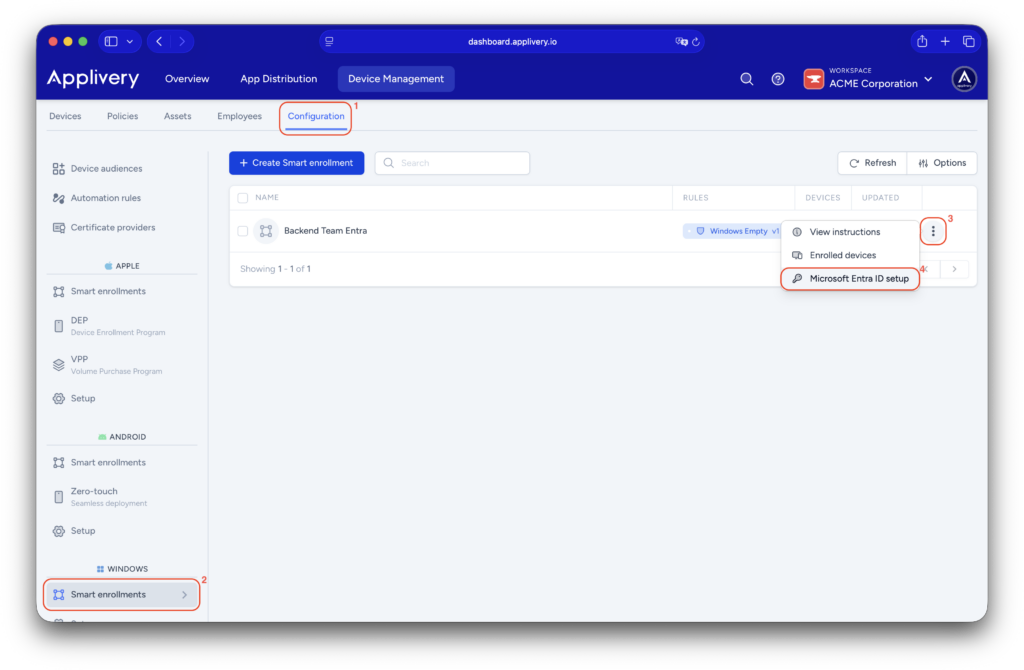
Once in the Applivery dashboard, head to the Device Management section and select Configuration (1). From the left-hand menu, select Smart Enrollments (2), then locate the enrollment profile you want to configure.
Click the three-dot (⋮) menu (3) on the right side of the profile and select Microsoft Entra ID setup (4). A modal window will open, displaying the required configuration details, including your unique Azure configuration URLs and the fields needed to complete the integration.
Step 2 - Complete the integration setup #
With the Applivery configuration modal open, you can now link Applivery with your Microsoft Entra ID tenant.
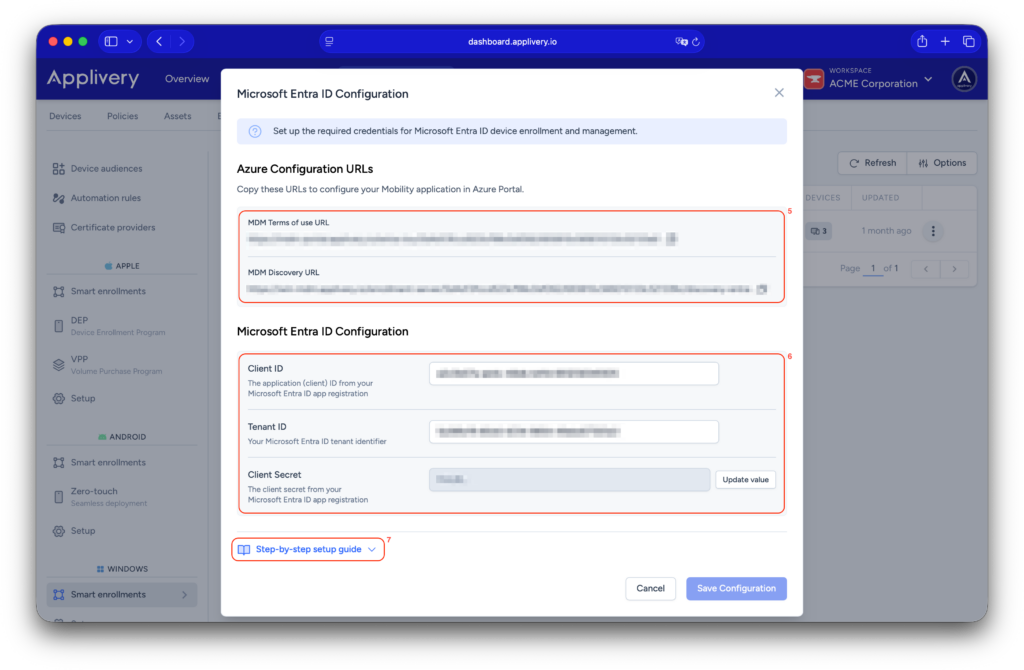
Copy the MDM Terms of Use URL and MDM Discovery URL (5) provided in Applivery and use them to configure the Mobility (MDM and MAM) application in the Microsoft Entra ID / Azure Portal. Then, enter the required credentials—Client ID, Tenant ID, and Client Secret (6)—into the corresponding fields in Applivery.
Once all values have been added, click Save Configuration to finalize the connection between Applivery and Entra ID.
By integrating Microsoft Entra ID with Applivery, organizations can enable a secure, identity-driven enrollment flow that simplifies onboarding, enforces access controls, and ensures devices are always managed according to corporate identity and security policies.