


Recovery Lock is a native macOS security feature designed to protect access to macOS Recovery. When enabled, it prevents unauthorized users from reinstalling macOS, erasing the disk, or modifying critical system settings outside the managed operating system.
Through Applivery, IT administrators can remotely set, verify, and remove Recovery Lock using official Apple MDM commands, without requiring physical access to the device or user interaction.
What does Recovery Lock do? #
When Recovery Lock is enabled on a Mac, access to Recovery Mode is protected by a password. Without this password, it is not possible to reinstall macOS, erase the device, or perform system-level recovery actions. This adds an extra layer of protection against theft, unauthorized access, or physical tampering, especially for fully managed corporate devices.
Setting a Recovery Lock #
Applivery allows administrators to set a custom Recovery Lock password by sending an MDM command directly to the device.
Once in the Applivery dashboard, head to the Device Management section and select Devices (1). Select the target device and open the Commands (2) tab. Click + New command (3) and, under the Recovery Lock section, choose Set Recovery Lock (4).
Define the desired password and execute the command.
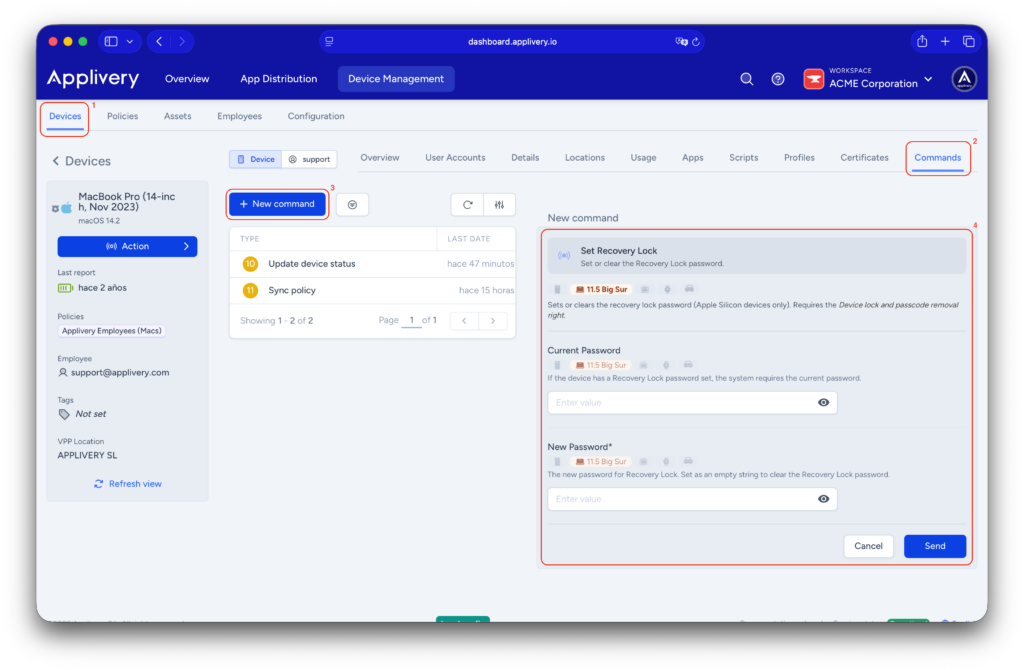
The password is applied immediately. No action is required from the end user, and the device will be protected the next time macOS Recovery is accessed. This approach is especially recommended for fully managed Macs in corporate environments.
Verifying the Recovery Lock password #
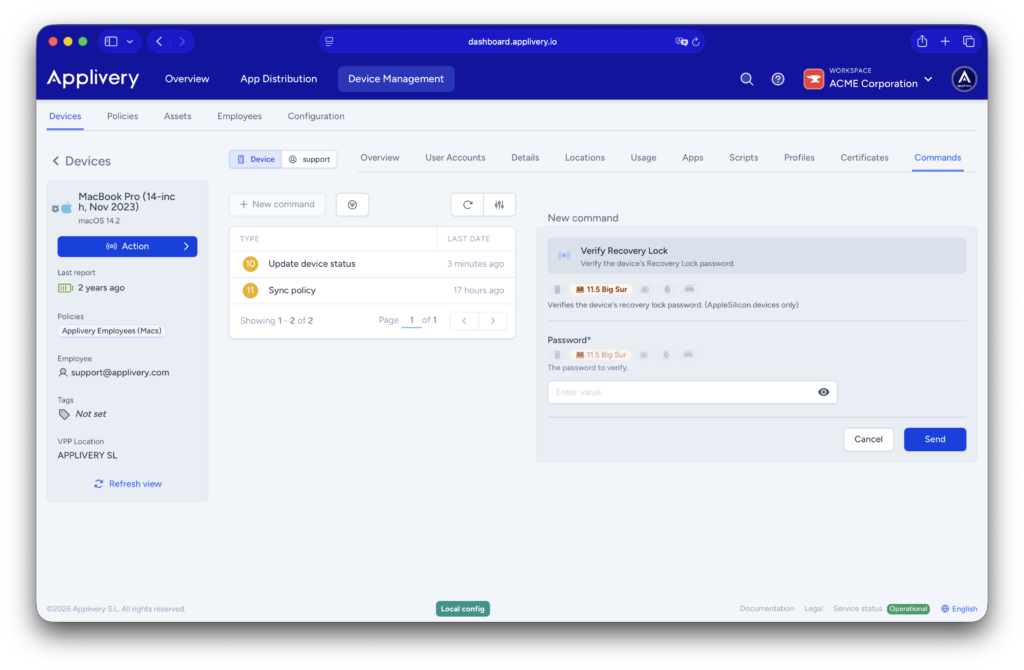
Applivery also allows administrators to verify whether a Recovery Lock password is valid, without rebooting the device or accessing Recovery Mode.
From the device’s Commands tab, click + New command, select Verify Recovery Lock, enter the password you want to validate, and execute the command.
The system will return a clear result indicating whether the password is correct or incorrect.
This capability helps IT teams validate passwords before performing sensitive operations, avoid unnecessary physical access to devices, and reduce errors during support or maintenance tasks.
Removing the Recovery Lock #
To remove Recovery Lock, go to the device’s Commands tab, click + New command, and select Set Recovery Lock again.
You must provide the currently active Recovery Lock password. If the password is correct, the lock is removed successfully.
If the correct password is not provided, Recovery Lock cannot be removed via MDM.
If the password is forgotten or unavailable, the only recovery option is to contact Apple directly. This process requires the original proof of purchase for the device and may result in a full device erase.
Recovery Lock is a powerful security feature for protecting corporate macOS devices against unauthorized recovery access. With Applivery, administrators can manage Recovery Lock centrally and remotely using the Set Recovery Lock and Verify Recovery Lock commands, without end-user involvement.
However, because Recovery Lock passwords cannot be recovered if lost, it is essential to apply this feature with a well-defined strategy that balances strong security with operational continuity and supportability.