


Samsung Knox E-FOTA allows enterprise IT administrators to centrally control operating system versions and security updates on Samsung devices, without requiring any user intervention. This capability enables organizations to validate OS updates in advance, ensure compatibility with internal applications, and deploy security patches on a controlled schedule, significantly improving device stability and security posture across the fleet.
Configuration #
To begin, access the Samsung Knox Admin Portal and sign in using an administrator account with at least the Common Admin and E-FOTA Admin roles enabled.
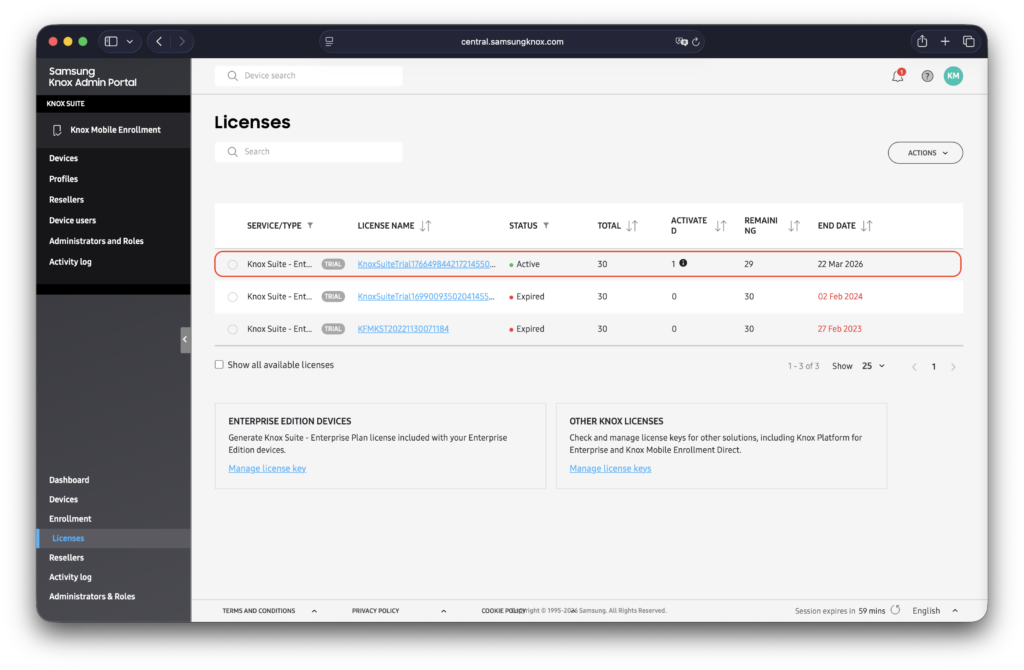
Preparing Applivery for Knox E-FOTA #
To enroll compatible Samsung devices in Knox E-FOTA through Applivery, you must create a dedicated Android policy that includes the Samsung Knox Service Plugin (OEMConfig) application.
Once in the Applivery Dashboard, create a new policy. This policy should be used exclusively for Knox E-FOTA configuration.
Within the policy, go to the Apps (1) section and click the + Add App button (2).
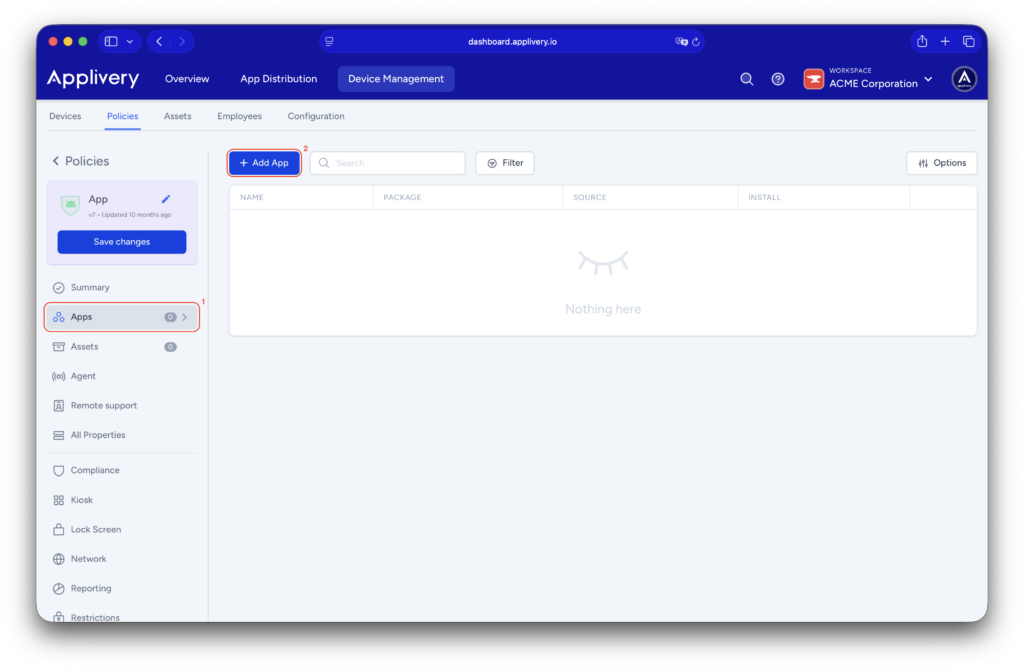
Search for the Knox Service Plugin app (package name: com.samsung.android.knox.kpu). Set the Install Type to Force Installed to ensure the app is automatically installed on any device associated with the policy.
Once the app appears in the list, click on it to expand all the managed properties and assign a name to the configuration profile (3).
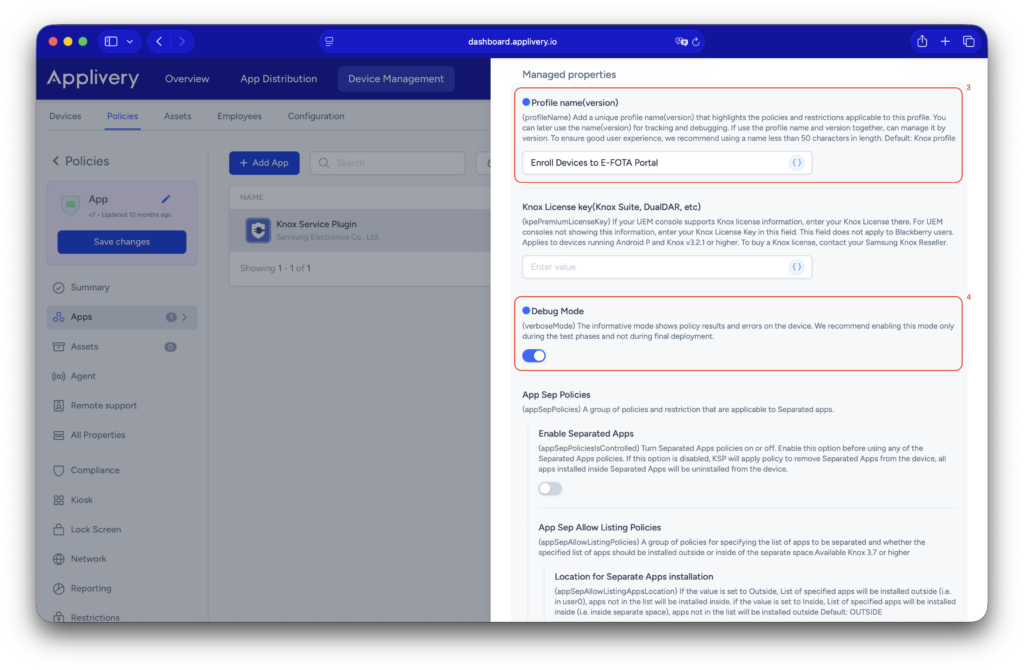
Enabling Firmware and E-FOTA controls #
Continue scrolling to the Do Policies section and Enable Device policy controls (5).
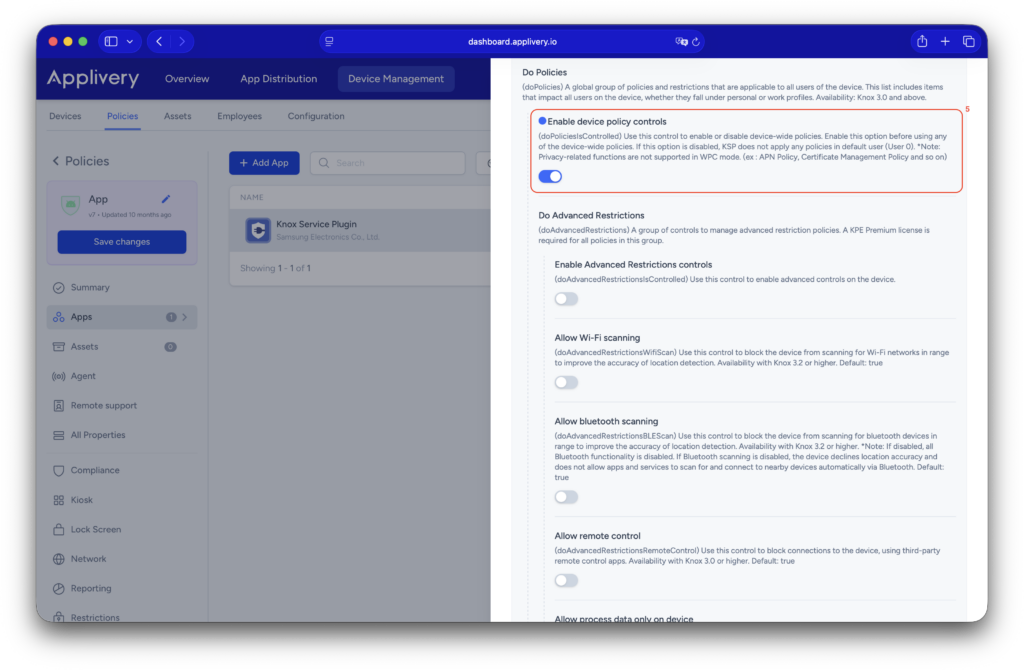
Then, in the Do Fota Update section, activate both Enable firmware controls (6) and Enable E-FOTA client installation & launch (7).
Optionally, you can control whether devices are allowed to receive standard OTA updates outside of Knox E-FOTA by configuring the Allow firmware update over-the-air (8) setting.
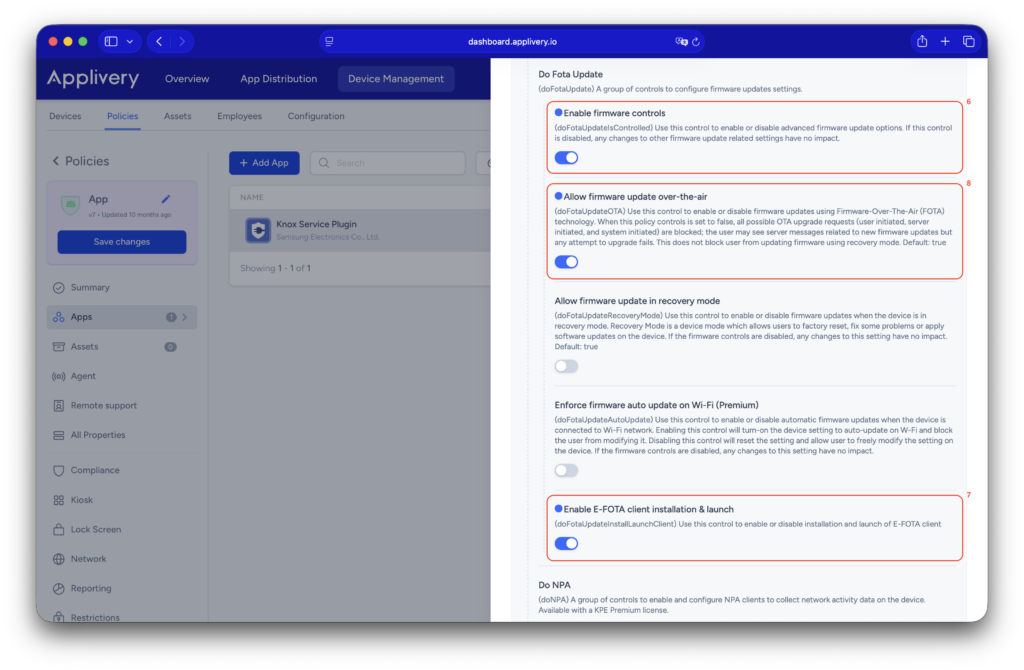
Once completed, assign this policy to the relevant Samsung devices using your preferred assignment method.
Device registration and Campaign management #
After the policy is applied, the Knox Service Plugin OEMConfig app is installed along with its managed configuration. This triggers the automatic installation of the Knox E-FOTA Client, and devices are silently registered in the Samsung Knox E-FOTA Portal.
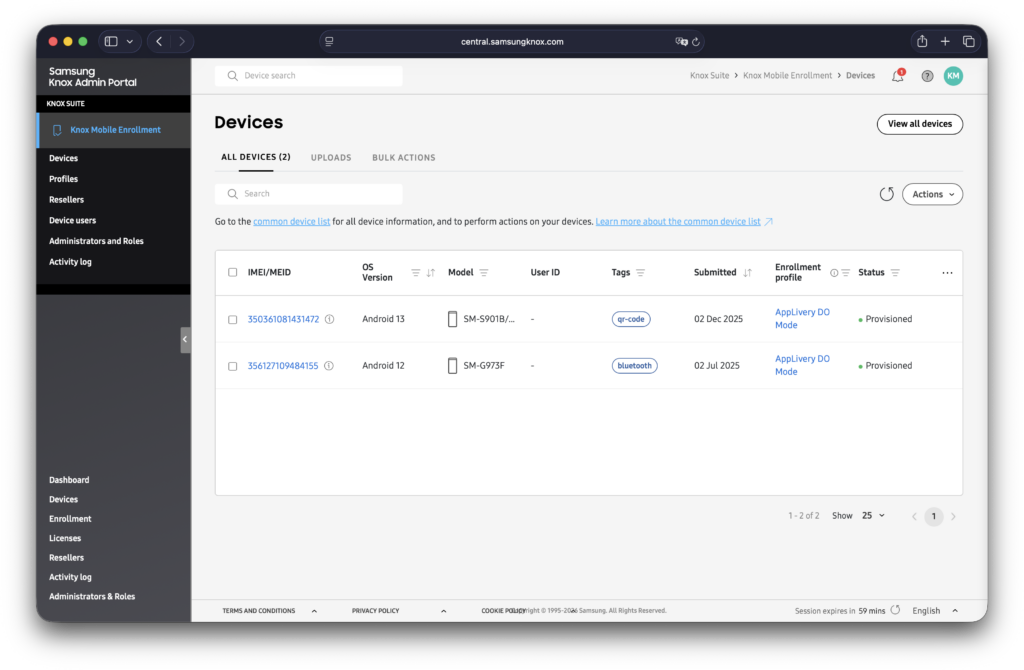
From this point forward, E-FOTA administrators can create and manage update campaigns per device model, enforce specific OS or firmware versions, and apply update constraints according to organizational requirements.
For additional information about Knox E-FOTA capabilities, refer to the official Samsung documentation.
For detailed instructions on creating and managing campaigns, refer to this article.