


Activation Lock is a built-in Apple security feature designed to prevent unauthorized use of Apple devices if they are lost, stolen, or erased. When enabled, it ties the device to an Apple ID and requires those credentials to reactivate the device after a reset.
In corporate environments, Activation Lock can be both a powerful security mechanism and a potential operational challenge if not properly managed. Applivery allows IT administrators to centrally control Activation Lock on supervised Apple devices, ensuring strong protection while maintaining administrative ownership and recoverability.
What is Activation Lock? #
Activation Lock is part of Apple’s Find My framework and is automatically enabled when Find My is active on a device. Once enabled:
- The device cannot be reactivated without the associated Apple ID credentials.
- Erasing the device does not remove the lock.
- The feature protects against unauthorized resale or reuse.
On unmanaged devices, Activation Lock is tied to the user’s personal Apple ID. In managed environments, this behavior can be controlled through MDM.
Activation Lock in managed Apple devices #
When devices are supervised and enrolled via Apple Business Manager (ABM), Activation Lock can be managed by the organization instead of the end user.
With Applivery, administrators can:
- Enable Activation Lock with institutional control.
- Bypass Activation Lock when recovering or redeploying devices.
- Prevent users from enabling personal Activation Lock.
- Retrieve or escrow bypass codes securely.
This ensures that devices remain protected without risking permanent lockout.
How Activation Lock works with Applivery #
Applivery uses Apple’s official MDM commands to manage Activation Lock behavior on supervised devices. When enabled, Activation Lock can be owned and controlled by the organization, a bypass code is automatically generated and securely stored, and administrators can remove Activation Lock remotely whenever required.
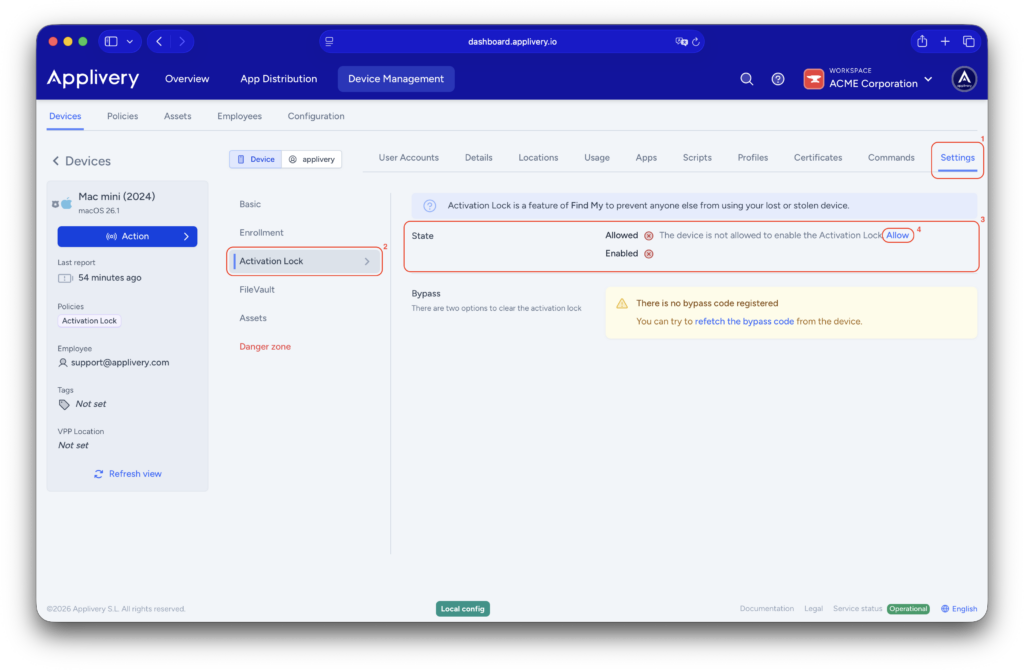
To allow enabling Activation Lock in Applivery, navigate to Device Management in the Applivery dashboard and select the target device. Then open the Settings (1) section and select the Activation Lock (2) tab. In the State (3) section, click Allow (4) to allow activating the feature.
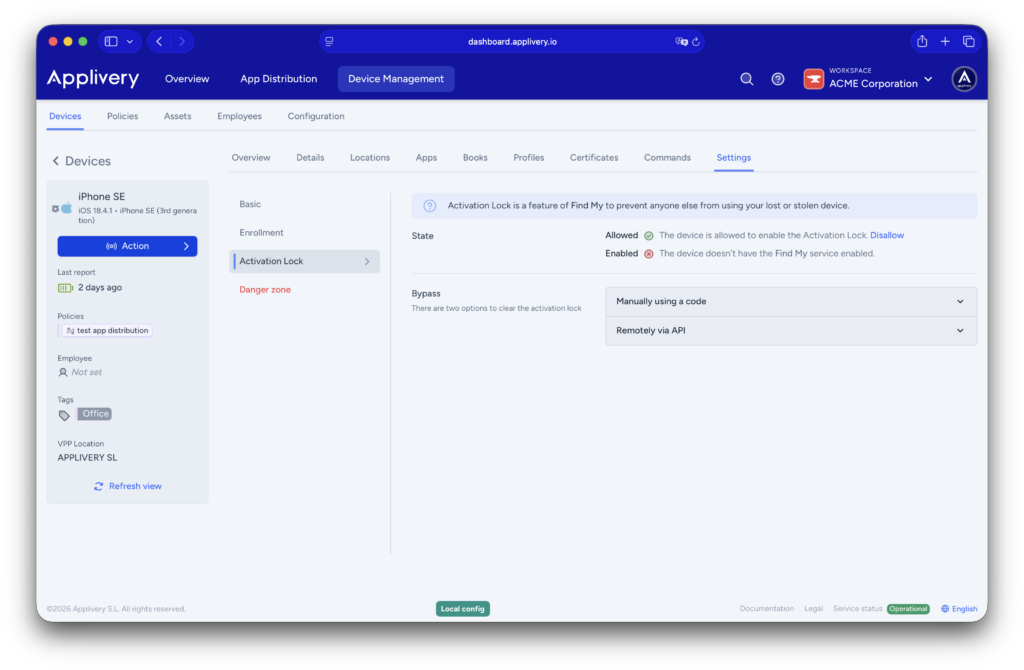
Once enabled, the Bypass section provides the available recovery options. Administrators can clear Activation Lock manually using the stored bypass code or remove it remotely through the Applivery API.
How to disable Activation Lock using ABM #
Apple has introduced a new capability in Apple Business Manager (ABM) and Apple School Manager (ASM) that allows administrators to disable Activation Lock on managed devices directly from the portal, without needing to enter a bypass code on the device. This provides a practical alternative to manually entering codes and is especially useful if a user has enabled Activation Lock through iCloud or Find My.
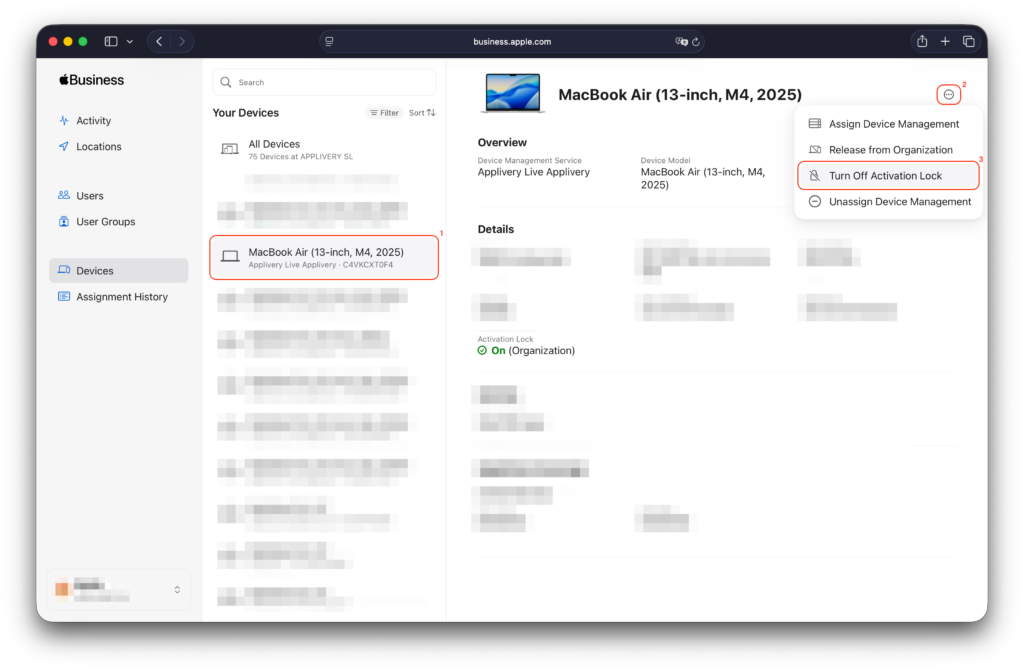
To use this feature, sign in to your ABM or ASM portal and locate the device for which you want to remove Activation Lock. Select the device (1), click the three-dot menu (2) in the top-right corner, and select Turn Off Activation Lock (3).
Important considerations #
Activation Lock should be used as part of a broader device lifecycle strategy:
- Devices enrolled without ABM may still be locked to user Apple IDs.
- If personal Activation Lock is allowed, recovery may require user cooperation.
- Institutional Activation Lock ensures recoverability without Apple intervention.
- Proper enrollment and supervision are critical for successful management.
Device state support for turning off Activation Lock #
The following device states determine whether you can turn off Activation Lock.
| Device state | User Interface | Can Activation Lock be turned off in Apple Business Manager? | Can Activation Lock be turned off in Applivery? |
|---|---|---|---|
| User-based Activation Lock turned on | Activation Lock On (User) | ✅ | ❌ |
| Organization-based Activation Lock turned on | Activation Lock On (Organization) | ✅ | ✅ |
| Managed Lost Mode turned on by the device management service | Activation Lock On (Organization) | ✅ | ✅ |
| Lost Mode turned on by user | Activation Lock On (User) | ✅ | ❌ |
Activation Lock is a key security feature for Apple devices, but in enterprise environments it must be carefully managed to avoid device lockouts and operational disruptions.
With Applivery, IT teams can centrally control Activation Lock using Apple’s official MDM framework, ensuring devices remain secure, recoverable, and fully under organizational control throughout their lifecycle.